Best Second Brain Apps in 2026

Last Updated: January 17, 2026
Second brain apps are built for people who save ideas everywhere and find nothing when they need it. Unlike basic note-taking apps, they’re designed around linking notes together, resurfacing old ideas, and making your knowledge useful months after you wrote it down.
I spent six months testing over 10 second brain apps to see which ones really work. This guide breaks down how each one handles daily use and which apps are worth the setup time.
For an app to make this list, it needed to be fast enough that I’d use it over pen and paper, flexible enough to handle different types of notes, and reliable enough that I’d trust it with years of ideas. A few popular apps didn’t make the cut — I’ll explain why as we go.
What makes a good Second Brain app?
Speed matters more than features. If opening the app and creating a note takes longer than grabbing a pen, you’ll stop using it. Every app on this list passes that test.
Organization is the next thing. Some people want folders, others want tags, and some want to link everything together and let the connections do the work. The best second brain apps give you options without forcing a system on you.
Search has to be solid. The whole point of a second brain is finding information without remembering where you put it. If the search doesn’t surface what you need quickly, the app fails at its main job.
And finally, the app needs to stick around. Your notes are long-term, so you want software that syncs reliably, won’t disappear next year, and doesn’t lock your data in a format you can’t export.
The Best Second Brain Apps at a Glance
| App | Best For | Standout Feature | Free Option | Platforms |
| Notion | People who want connected workspaces | Flexible blocks that combine notes, databases, etc. | Free for personal use | Web, Mac, Win, iOS, Android |
| Obsidian | People building connected note systems | Knowledge graph visualization | Free for personal use | Mac, Win, Linux, iOS, Android |
| Logseq | People who think in outlines | Daily notes with bidirectional linking | Free (open-source) | Mac, Win, Linux, iOS, Android |
| Anytype | Privacy-focused note takers | Local-first storage with object types | Free plan available | Mac, Win, Linux, iOS, Android |
| Coda | Teams needing interactive documents | Documents with app-like functionality | Free with basic features | Web (primary), iOS, Android |
| Capacities | Visual thinkers | Contextual backlinks with surrounding text | Free with generous limits | Web, iOS/Android companions |
| Joplin | Evernote users looking for alternatives | End-to-end encryption and web clipper | Free (open-source) | Mac, Win, Linux, iOS, Android |
| Apple Notes | Apple users | Quick capture and native Apple experience | Free (included with Apple devices) | macOS, iOS, iPadOS (+ iCloud Web) |
| Google Keep | Google users | Integration with Gmail, Docs, Calendar | Free | Web, Android, iOS |
| RemNote | Students and people learning new things | Built-in flashcards with spaced repetition | Free for basic features | Web, Mac, Win, Linux, iOS, Android |
| WorkFlowy | People who organize their ideas in lists | Infinite zooming into list items | Free with limits | Web, Mac, Win, Linux, iOS, Android |
Notion
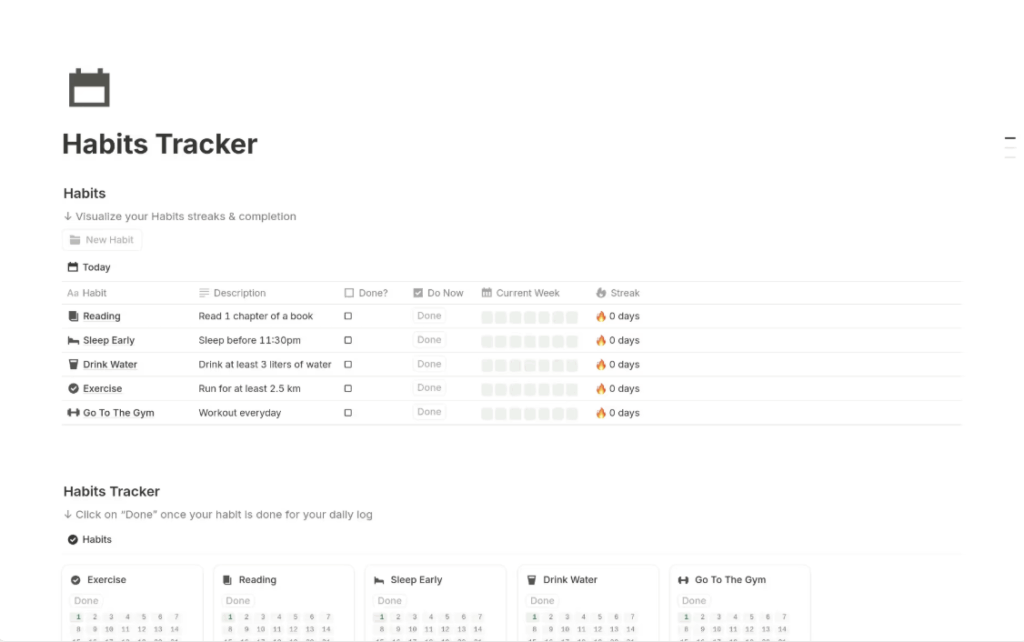
Notion is one of the most popular second brain apps out there, and for good reason. Many users promote it as one of the best tools for building a personal knowledge management system (PKMS), thanks to how flexible it is. It lets you build notes, databases, project trackers, and more in one place. Think of it as digital building blocks you can arrange however you want.
What I like most about Notion is how it connects everything. You can add pages within pages without creating multiple folders. I built a content calendar that links to my research notes, making it easy to find project information without digging through folders. The block-based editor is another thing I appreciate — you can drag and drop any block to rearrange content, create multiple columns, and structure pages exactly how you want. It makes organizing information feel flexible instead of rigid.
The big update in 2025 was Notion 3.1, which introduced Agents. This isn’t just AI that answers questions — it’s an agent that can take action across your workspace. It can build a launch plan, break it into tasks, assign them to people, and draft supporting docs. It works at scale too, updating hundreds of database pages at once. The agent can also build forms in seconds, so you can collect feedback or send surveys without manual setup.
Notion also finally shipped offline mode. You can now access pages and capture ideas without internet on desktop and mobile — a feature users requested for years.
Other recent additions include AI Meeting Notes that transcribe and summarize calls automatically, Enterprise Search that pulls answers from Notion plus connected tools like Slack and Google Drive, and a new map view for databases. Pages also load 15% faster than before.
While it works great for personal use, Notion shines for team collaboration and shared knowledge bases. The free plan covers most individual needs, while paid plans add unlimited uploads, team features, and full AI access.
What’s good:
- Block-based editor lets you drag, rearrange, and create columns freely
- Agents can take multi-step actions across your workspace
- Builds forms, plans, and docs automatically with AI
- Offline mode is now available on desktop and mobile
- AI Meeting Notes transcribe and summarize calls
- Enterprise Search across Notion and connected tools (Slack, Google Drive, Gmail, GitHub)
- Multiple AI models built in (Claude Sonnet 4, GPT-5, Gemini 3 Pro)
- Map view for databases with location tracking
- 15% faster page loading
Not so good:
- Can feel overwhelming if you want something simple
- Advanced AI features require a Business plan ($18/user/month)
- Big workspaces can still feel slow
- Mobile app is not as robust as the desktop
Pricing: Free for personal use; $12/month for Plus with more uploads; $18/month for Business with full AI features, including Agents, Enterprise Search, and AI Meeting Notes.
Obsidian
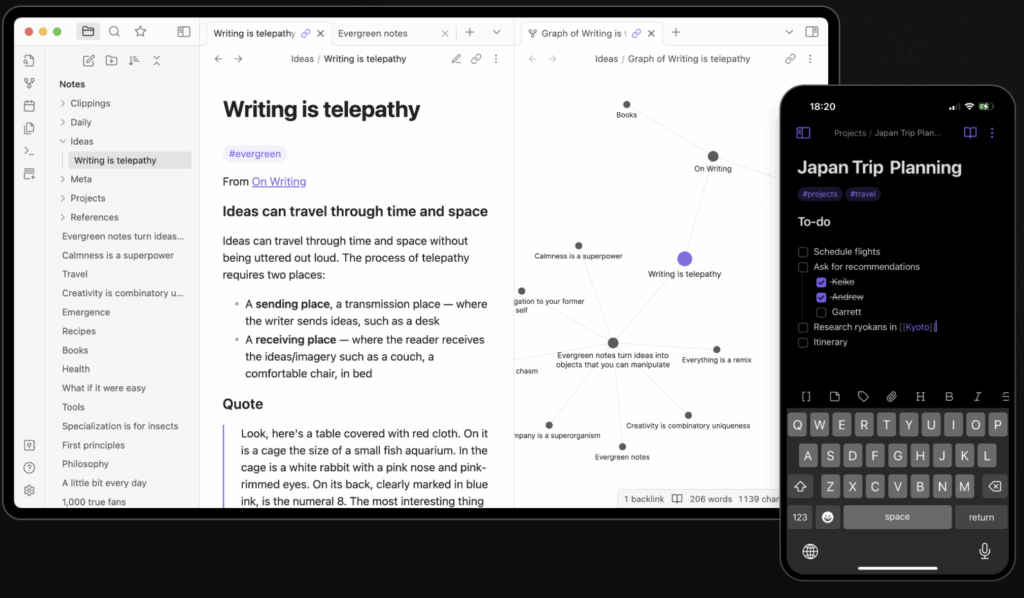
Obsidian has become a favorite among people who want to build connections between their notes and create a personal knowledge management system. It stores all your notes as Markdown files on your own device or local first, not on company servers, giving you complete control over your data.
The standout feature is bidirectional linking. Type double brackets and you can link to any other note. This creates two-way connections, so you can see all the notes that link to the one you’re viewing. The graph view shows all these connections visually, which helps you spot patterns and relationships you might have missed.
I still use Obsidian as my main archive for notes. My work notes live there, and I rely heavily on the web clipper to save articles and references — it’s one of the best clippers I’ve used.
Everything stays organized and searchable without depending on a cloud service.
The big update in late 2025 was Bases — Obsidian’s answer to Notion databases. You can now create table views, list views, and even map views of your notes. Add filters, group by properties, use formulas, and summarize data. Many users have been waiting years for this feature, and it finally puts Obsidian on equal footing with Notion when it comes to structured data.
In January 2026, Obsidian shipped a refreshed UI for both desktop and mobile. The interface feels cleaner, and on mobile, navigation auto-hides when you scroll to give you more reading space. iOS users got widgets for Lock Screen, Control Center, and Home Screen, plus Siri integration for commands like “Capture using Obsidian” or “Open my daily note.” Android got similar widgets and a Quick Settings tile.
Obsidian also lets you customize almost everything through themes and plugins. You can add features like calendars, Kanban boards, or flashcards to match your exact needs. The core app is free for personal use, with optional paid add-ons for syncing across devices or publishing notes as websites.
What’s good:
- Your notes stay private on your own device as plain Markdown files
- Bidirectional linking creates a network of connected ideas
- Web clipper is excellent for saving articles and references
- Bases feature adds database views (table, list, map) with filters and formulas
- Refreshed UI on desktop and mobile (January 2026)
- iOS widgets, Siri integration, and Android widgets for quick capture
- Graph view visualizes all your note connections
- Over 2000 community plugins for customization
- Works completely offline
Not so good:
- Steeper learning curve than simpler apps
- Setting up sync between devices requires extra steps or paid Sync add-on
- Mobile app still not as full-featured as desktop
- Bases is new and still getting polished
- Paid sync limited to 1GB, which some users find restrictive for the price
Pricing: Free for personal use; $5/month for Sync across devices (1GB storage); $10/month for Publish to turn notes into websites.
Logseq
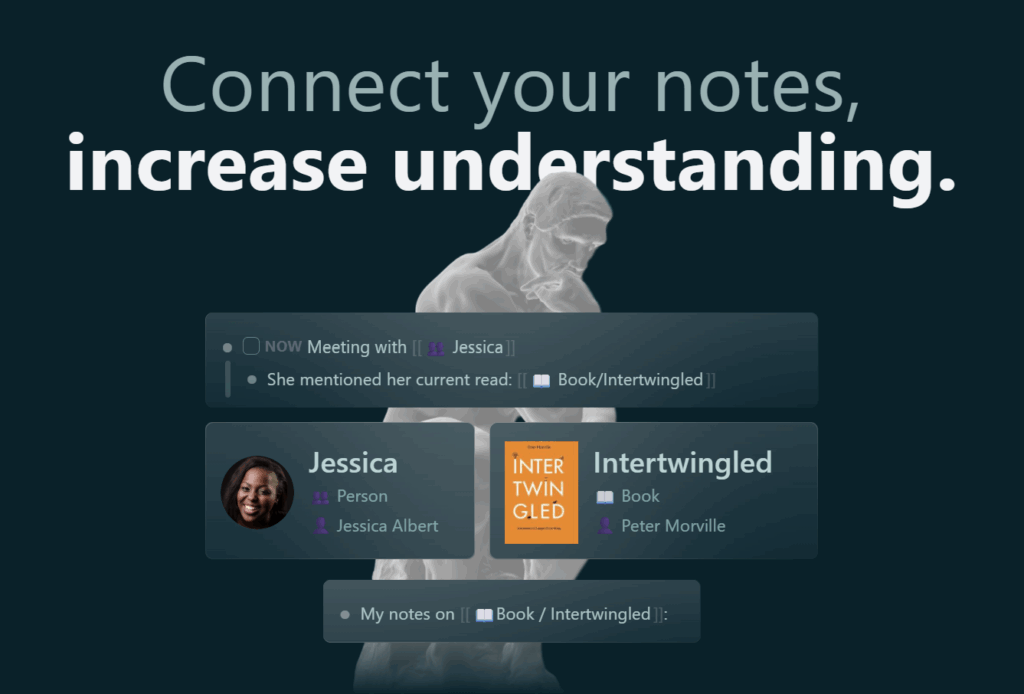
Logseq is a powerful open-source note-taking tool that’s perfect for people who write in outlines or lists. It is one of the well-known and recommended outliner apps by most people. It organizes everything in bullet points that can be expanded or collapsed, making it really easy to structure your thoughts. Each page is essentially a collection of nested bullet points that you can rearrange, expand, or collapse as needed.
What makes Logseq special is its daily notes feature. Each day automatically creates a new page where you can log thoughts, tasks, and ideas. By linking important concepts between days, you gradually build a network of connected knowledge that grows naturally over time. I found this way of taking notes really helpful for managing information bit by bit rather than trying to organize everything at once.
Like Obsidian, Logseq stores notes as simple text files on your device, keeping your data private and under your control. It supports both Markdown and Org-mode, with great backlinking and block references. You can embed content blocks using ((id)) references, and the app automatically shows linked references for each page.
I found Logseq particularly helpful for project planning, research, and journaling, especially if you write in an incremental or interstitial style. The outline structure made it easy to organize complex information while still creating connections between different sections. The ability to collapse sections helps manage information overload when working with large projects or research topics.
What’s good:
- Organizes notes in expandable outlines
- Keeps your data private on your device
- Daily notes help build knowledge gradually
- Includes task management
- Built-in graph view visualizes your knowledge connections
- Strong plugin ecosystem (150+ community plugins)
- Whiteboards feature for free-form mind mapping
Not so good:
- Takes time to get used to the outline organization
- Mobile apps are still improving
- Smaller community than bigger apps
- Setting up sync takes some technical knowledge
- Performance can suffer on very large graphs
- The interface is more utilitarian than visually polished
- Lack of DB progress and overall app updates by the developer team, which adds more frustration for users
Pricing: Free for personal use; optional Logseq Sync service in beta (~$5/month) with end-to-end encryption; you can also sync for free via third-party methods (Dropbox, Git)
Anytype
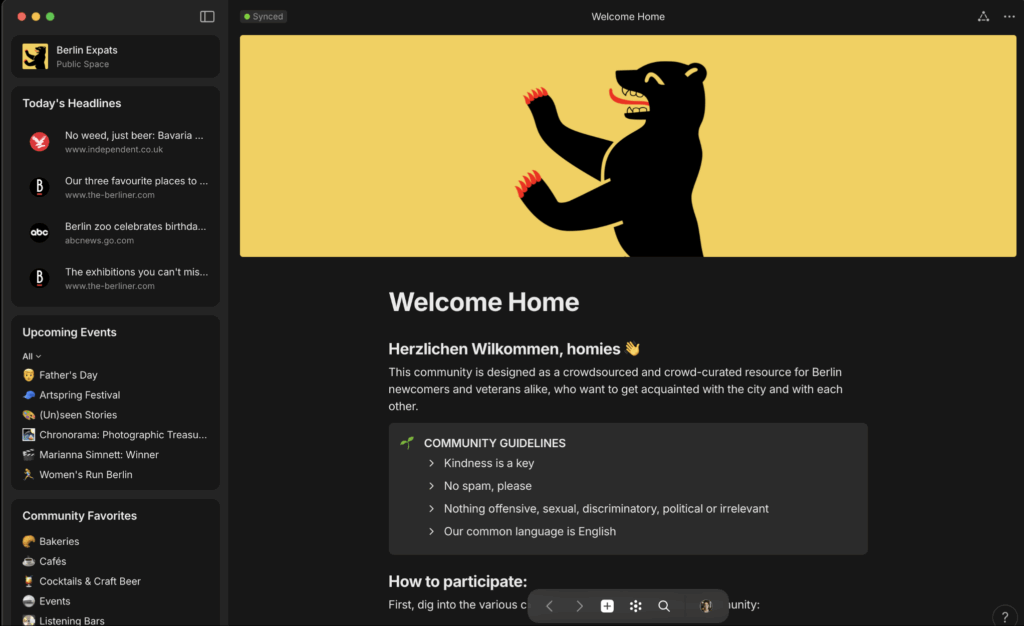
Anytype is a solid choice for privacy-focused users who want a structured way to organize their notes. It offers features similar to Notion — databases, kanban boards, nested pages — but everything stays local on your devices with peer-to-peer sync. Your data never lives on company servers.
What sets Anytype apart is how it handles data ownership. Everything is end-to-end encrypted and syncs directly between your devices without going through a central server. If you work with sensitive information or value your privacy, this matters.
The big update in late 2025 was the introduction of Chats. Anytype now lets you chat directly within the app — reply, react, share files, and even create objects from your conversations. It’s all encrypted and peer-to-peer, just like the rest of the app. You can have multiple chat channels within a Space, and Direct Channels let you message someone one-on-one without any admin hierarchy. The Anytype team has been using the chat feature internally, which says something about how far it’s come.
The UI also got a refresh. The vault now shows Spaces and Chats together with live previews, and the sidebar has clearer separation between pinned items and object containers. Navigation feels smoother across desktop and mobile.
Anytype organizes information through “objects” — notes, tasks, people, books, or whatever types you create — each with their own properties and relationships. This takes some getting used to, but once it clicks, you can build systems that mirror how you think about information.
The app is open-source, and you can self-host if you want full control. Mobile apps are available on iOS and Android with most core features.
What’s good:
- Complete privacy with local storage and P2P sync
- End-to-end encrypted, including the new chat feature
- Built-in Chats with replies, reactions, and object creation
- Direct Channels for private one-on-one messaging
- Create custom object types with properties and relationships
- Redesigned vault and sidebar for better navigation
- Open-source with self-hosting option
- Works offline by design
- Knowledge graph view for visualizing connections
Not so good:
- Pricing changed in 2025 — the free tier now offers only 100MB of storage (existing users prior to the change are grandfathered into the old 1GB limit)
- Still maturing with occasional rough edges
- Mobile apps have fewer features than desktop
- Object-based system takes time to learn
- Export features still not fully polished — relations and properties don’t always carry over
- Self-hosting documentation could be more complete
Pricing: Free (100MB storage, 10 shared channels, unlimited private channels); Plus at $4/month (1GB storage, unlimited shared channels); Pro at $8/month (10GB storage); Ultra at $16/month (100GB storage). All paid plans include a 30-day money-back guarantee.
Coda
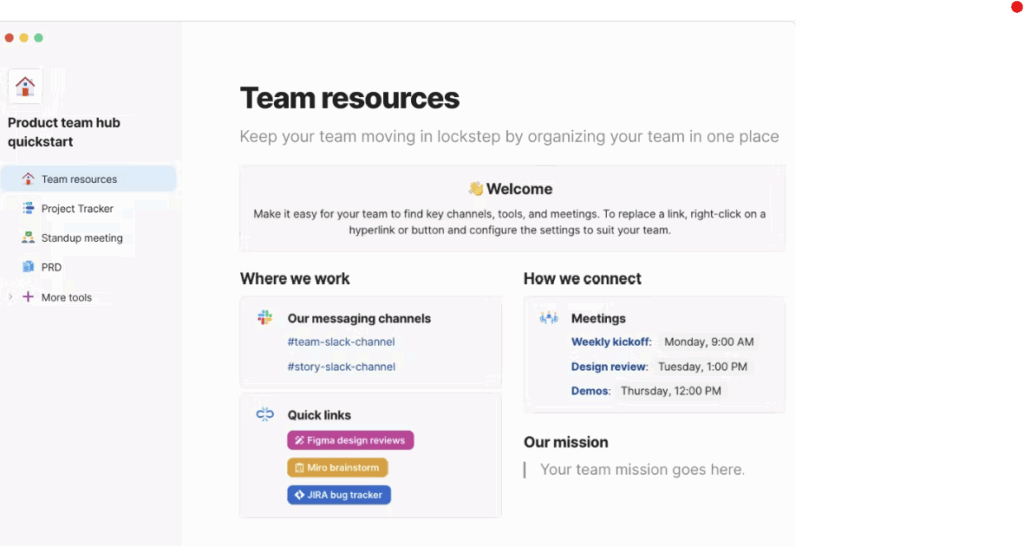
Coda is a powerful tool that’s great for teams who need more than just static documents. It’s one of my favorites — maybe even more than Notion — partly because I love its UI. It is one of Notion’s best alternatives in terms of features and functionality, as it practically offers the same features. It combines text, tables, and interactive elements to create documents that work like mini-apps, blurring the line between documents and applications.
What I love about Coda is how it lets you add formulas, buttons, and automation to regular documents. Its formula system is something far better and more mature than Notion. I created a project tracking document that automatically calculated timelines, sent reminders, and visualized progress without needing any coding skills. This makes it super useful if you need to both document information and do things with that data.
The app really shines when you need to collaborate on complex information. For instance, a team can use it to build a customer database that everyone updates, with views that automatically calculate important metrics and send alerts when action is needed. For small businesses or teams managing projects, this combination of document and application can eliminate the need for multiple specialized tools.
One of the things I like about Coda is its pricing structure. It’s based on “Doc Makers,” which is good for teams that only want to limit those with full access and pay only for a handful of users, while editors are free and can manage existing pages.
The big news in 2025 was Coda’s acquisition by Grammarly, with Coda co-founder Shishir Mehrotra becoming CEO. Then, in October 2025, Grammarly acquired Superhuman Mail and rebranded the entire company as “Superhuman.” Coda is now part of the Superhuman suite — alongside Grammarly, Superhuman Mail, and Superhuman Go. Some users worry about what this means for Coda’s future direction, but for now, the product continues to get updates.
In January 2026, Coda shipped tabbed views — a long-requested feature that lets you add table, calendar, board, and timeline views as tabs within a single table. No more jumping between pages or scrolling through your doc to see different views of the same data. The 2025 UI refresh also made the whole experience cleaner, with breadcrumb navigation, consolidated menus, and a redesigned workspace home.
Coda connects with many other services through what they call “Packs.” These let you pull in data from tools like Google Calendar, Jira, or GitHub, making it great for creating dashboards that combine information from different sources.
What’s good:
- Clean UI with 2025 refresh and breadcrumb navigation
- Tabbed views let you switch between table, calendar, board, and timeline in one place
- Create documents with interactive elements
- Build custom dashboards to track important info
- Formula system is more powerful and mature than Notion
- Connect to other services to pull in data
- Work together with teammates in real-time
- Automate repetitive tasks
- Includes AI features at no extra cost (unlike Notion)
- Pricing based on “Doc Makers” allows teams to pay only for full access users, while editors are free
Not so good:
- Now part of Superhuman — future direction unclear for some users
- Takes time to learn all the features
- Works mainly in a browser (desktop apps are wrappers)
- Complex docs can run slowly sometimes
- Mobile experience isn’t as good as desktop
- Lacks true backlinks and graph visualization
Pricing: Free with basic features; $10/month per Doc Maker for Pro (billed annually; $12 if monthly); $30/month per Doc Maker for Team. Coda is also available as part of the Superhuman suite subscription.
Capacities
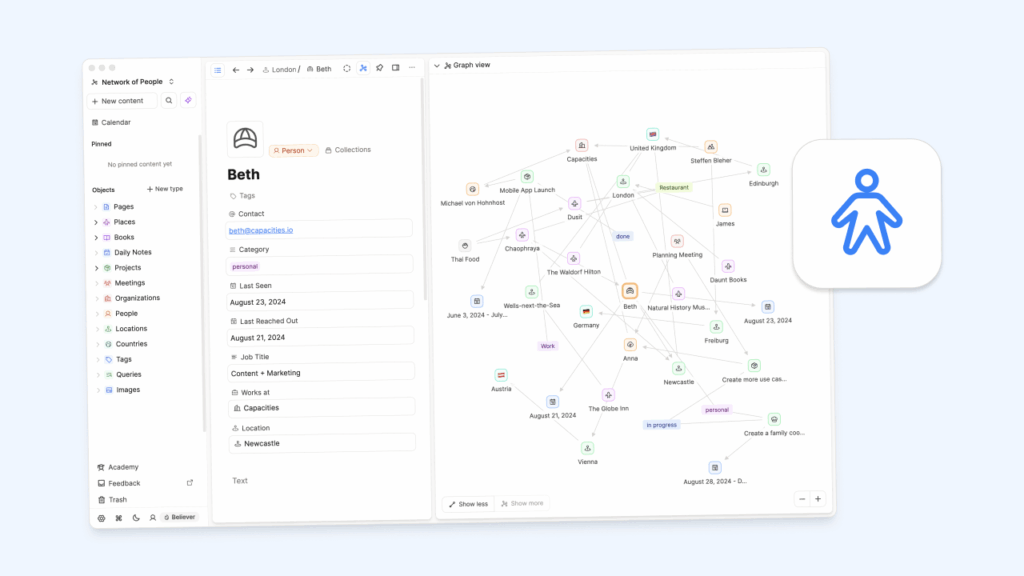
Capacities is my personal favorite for daily journaling. I’ve been using it since early 2023, and it’s become central to how I capture and organize my thoughts. If you like Notion but want something that takes a more structured approach to connecting information, Capacities might be what you’re looking for. It uses “objects” to represent different types of content — like books, people, meetings, or ideas — and helps you see how they all connect.
What sets Capacities apart is how it handles different types of information. Instead of putting everything in one big database, you create specific object types for different things. A book gets different properties than a meeting note, which gets different properties than a person. This makes it easier to find and connect related information later.
For my journaling workflow, I use daily notes to capture thoughts and link them to relevant objects. Over time, this creates a rich web of connections that helps me see patterns in my thinking. The graph view visualizes these connections, making it easy to spot relationships I might have missed.
The unexpected update in December 2025 was the addition of task management — something many users didn’t expect from a PKM-focused app. It’s still in early stages, but the implementation is thoughtful. They call it “contextual task management” because when you capture a task, it captures where the task lives. If you add a task inside a project, it shows that context. Tasks appear in the central calendar, and you can view them in a Kanban board to track progress across statuses. There’s an inbox for unscheduled tasks, a today view, priority flags, and customizable statuses. For someone like me who wants to keep tasks connected to their context rather than in a separate app, this is a welcome addition.
Other notable 2025 updates include Readwise integration for syncing highlights, full offline mode, calendar integration, and multiple pinned sections in the sidebar. The Raycast integration also got a major update with offline support and the ability to create tasks directly.
Capacities is still growing, and the team is small but responsive to user feedback. It’s not as feature-rich as Notion yet, but for personal knowledge management with a focus on connections and journaling, it hits a sweet spot that other apps don’t quite reach.
What’s good:
- Object-based system makes organizing different types of content intuitive
- Daily notes perfect for journaling with automatic date linking
- The graph view shows connections between your notes
- New task management with Kanban views and calendar integration
- Contextual tasks capture where tasks live within your knowledge base
- Readwise integration for syncing highlights
- Full offline mode
- Clean, focused interface without overwhelming options
- AI assistant built in
- Active development with a responsive team
Not so good:
- Task management is still in its early stages
- Fewer integrations than established apps
- No API for advanced automation (though one is planned)
- Mobile app works, but not as polished as the desktop
- Learning curve for the object-based approach
- No collaboration features yet
Pricing: Free with core features; Pro at $9.99/month or $12.49 for Believer adds an AI assistant, queries, Readwise sync, task management, Kanban views, and unlimited storage.
Joplin
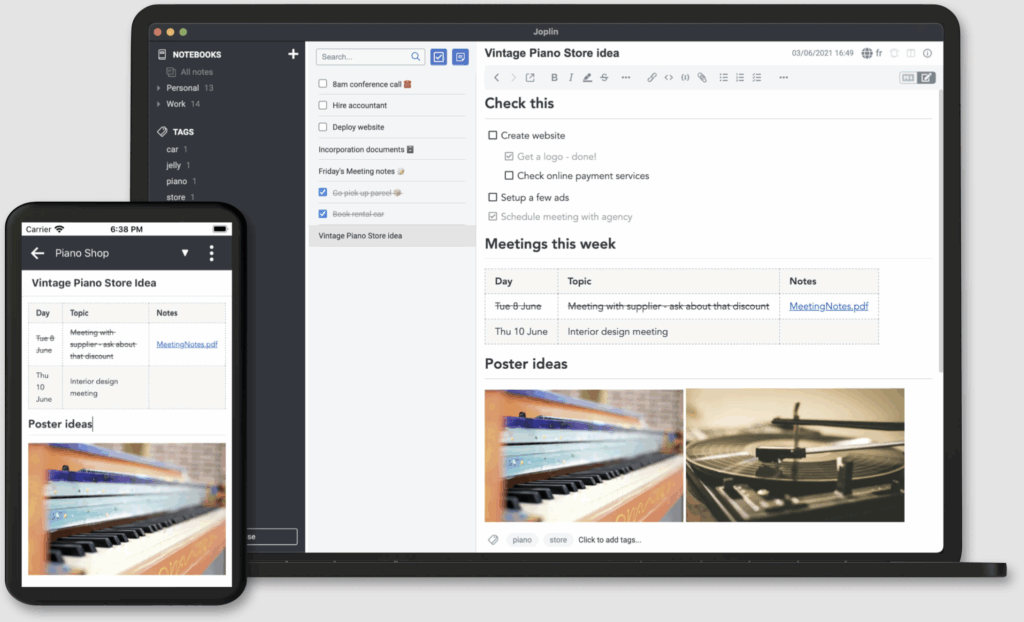
Joplin has become one of the best alternatives to Evernote, offering a free and open-source solution with a similar interface. It gives you a classic three-panel layout with notebooks on the left, a note list in the middle, and a note editor on the right.
What I really like about Joplin is its focus on privacy while still being easy to use. Your notes can be end-to-end encrypted, and you control where they’re stored, whether that’s on Dropbox, OneDrive, or Joplin’s own cloud service. This makes it perfect if you’re storing sensitive information but don’t want to rely on a company’s servers.
I found Joplin particularly good for research and web clipping. The browser extension lets you save articles, screenshots, and pages directly to your notebooks. And since it supports Markdown, you can format notes with simple symbols or use the rich text editor. Just like Obsidian, it also supports plugins that you can install and use to add more functionality.
Since Joplin is open-source, you don’t have to worry about it suddenly changing its business model or disappearing. Your notes are stored in a standard format that you can access even without the app. The “projects” feature for grouping notebooks makes it even easier to organize large collections of notes by topic or purpose.
What’s good:
- Free and open-source
- Your notes can be fully encrypted
- You choose where to store your data
- Web clipper saves articles and pages
- Works on all major platforms
- Projects feature for grouping notebooks
- Support for plugins (including backlinks and graph view)
Not so good:
- The interface isn’t as polished as paid alternatives
- Mobile apps have some limitations
- Setting up sync requires more steps than cloud-only apps
- No automatic backlinks without installing a plugin
- No built-in graph view (though community plugins exist)
- Limited collaboration (can share notebooks via Joplin Cloud, but not real-time)
Pricing: Free; optional Joplin Cloud starts at €2.99/month for syncing, publishing notes, and sharing notebooks
Apple Notes
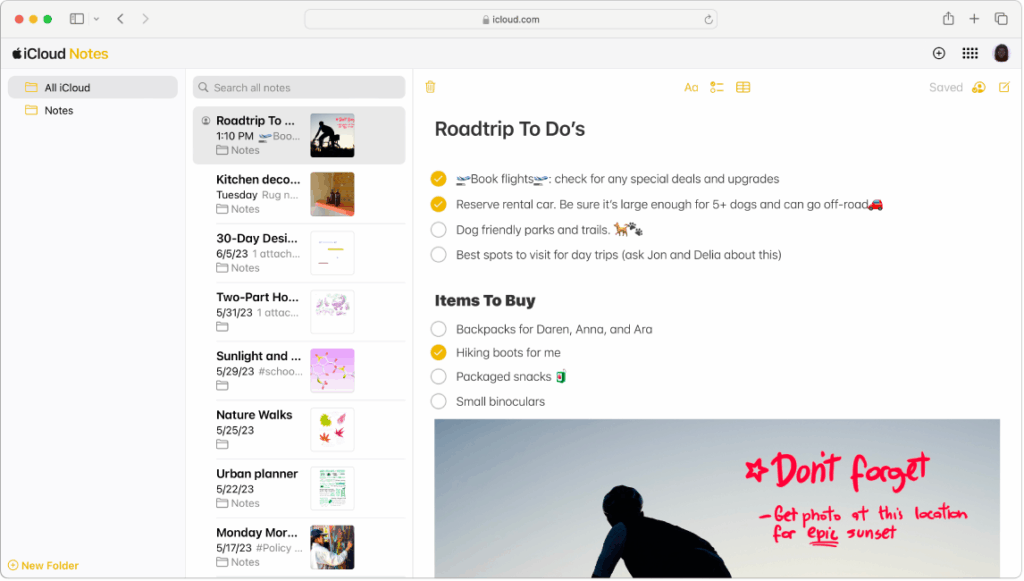
For Apple device owners, the built-in Notes app has evolved from a basic app into a surprisingly capable note-taking system. Apple Notes has grown a lot over the years and can now handle most note-taking needs while keeping things simple.
What I love about Apple Notes is how perfectly it works across iPhone, iPad, and Mac. It opens instantly and syncs reliably, which eliminates the friction that often leads me to abandon note-taking systems. When a quick idea strikes while I’m out and about, I can jot it down immediately without waiting for an app to load.
Recent updates have really transformed Apple Notes. Folders, tags, smart folders, and improved search make it easy to organize lots of notes. You can also scan documents, annotate PDFs, and add sketches directly in your notes. Most importantly, Apple Notes now has the ability to link between notes, which is key for building a connected Second Brain.
While Apple Notes doesn’t have all the advanced features found in specialized apps, its integration with the Apple ecosystem creates unique benefits. You can use Siri to create notes, start a Quick Note from any app, and password-protect sensitive information. The balance of simplicity and capability makes it perfect for everyday use.
What’s good:
- Works perfectly across all Apple devices
- Opens instantly for quick notes
- Simple folders and tags for organization
- Secure with password protection
- Built-in document scanning and drawing
- Note-to-note linking capability
- Improved PDF handling
- Smart Folders with filtering
- Collaboration with shared notes and folders
Not so good:
- Only works with Apple devices
- Links are one-way (no automatic backlinks)
- No graph view for visualizing connections
- Fewer formatting options than specialized apps
- Limited export options
Pricing: Free with iCloud account; additional storage from $0.99/month
Google Keep
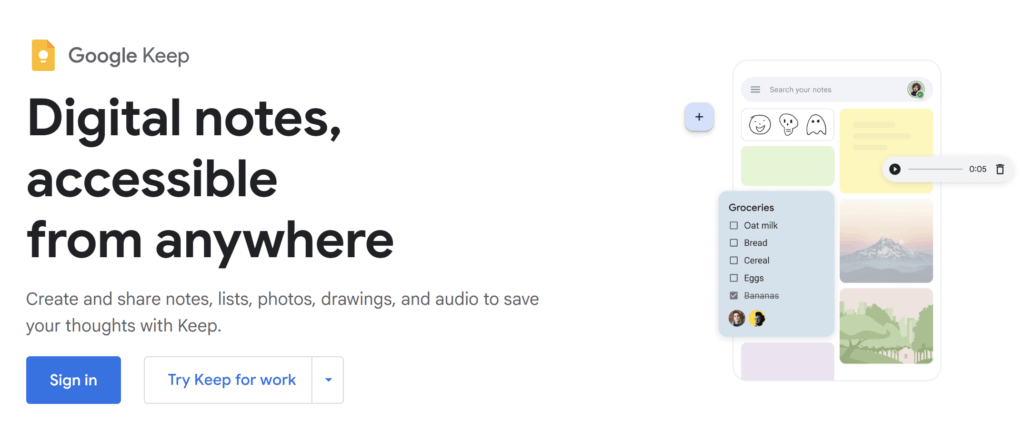
Google Keep is fully integrated with Google Workspace, making it an excellent choice if you’re already using Google’s ecosystem. Unlike most note-taking apps, Keep is designed more like digital sticky notes than a traditional notebook, focusing on speed and simplicity.
What I like most about Google Keep is how incredibly fast it is for capturing quick thoughts, checklists, and reminders. It’s like grabbing a sticky note and jotting down a quick idea, perfect for shopping lists, sudden inspirations, or brief reminders. The colorful interface makes it easy to visually organize different types of notes at a glance.
Google Keep really shines when I use it alongside other Google services. My notes appear in the sidebar of Gmail, Google Docs, and Calendar without switching apps. This integration makes it super convenient to reference information while working in other Google tools. For example, I can check my shopping list while reading an email or reference meeting notes while in my calendar.
You can also convert your notes in Google Keep into Google Docs, so if you have an idea on the go, you can simply jot it down in Google Keep and, by clicking “copy to Google Docs,” expand on it later. Another thing is that Google Keep is also well integrated with Gemini, where you can use Keep to store your research, especially if you’re a fan of practicing Zettelkasten methods.
The main change in late 2025 was the migration of reminders to Google Tasks. When you set a reminder in Keep, it now saves to Google Tasks and syncs with Google Calendar. You can view and complete reminders from Keep, Calendar, Tasks, Assistant, and Gemini — making it more unified across Google’s ecosystem. However, this also means Google Keep no longer sends reminder notifications directly. You’ll need the Google Calendar or Tasks app installed to receive alerts. The bigger loss is that location-based reminders are gone entirely since Google Tasks doesn’t support them. If you relied on “remind me when I get home” or “remind me at the grocery store,” that’s no longer an option — existing location data just gets dumped into the task description.
While Keep isn’t designed for long-form writing or complex organization, it excels at what it does: quick capture and simple organization. You can add labels, colors, and reminders, then search everything with Google’s powerful search technology that can even find text within images.
What’s good:
- Opens instantly for quick notes
- Color-coding helps visual organization
- Integrated with other Google apps
- Voice notes with automatic transcription
- Powerful search finds anything quickly
- Basic rich text formatting added (bold, italic, underline, headers)
- Multiple notes side-by-side on large Android screens
- Improved drawing features
- Easy conversion to Google Docs
- Well integrated with Gemini for research and Zettelkasten workflows
Not so good:
- Location-based reminders removed (migrated to Google Tasks, which doesn’t support them)
- Keep no longer sends reminder notifications — requires Calendar or Tasks app
- Limited formatting options
- No true linking between notes
- Basic compared to dedicated second-brain apps
Pricing: Free with Google account; additional storage from $1.99/month
WorkFlowy
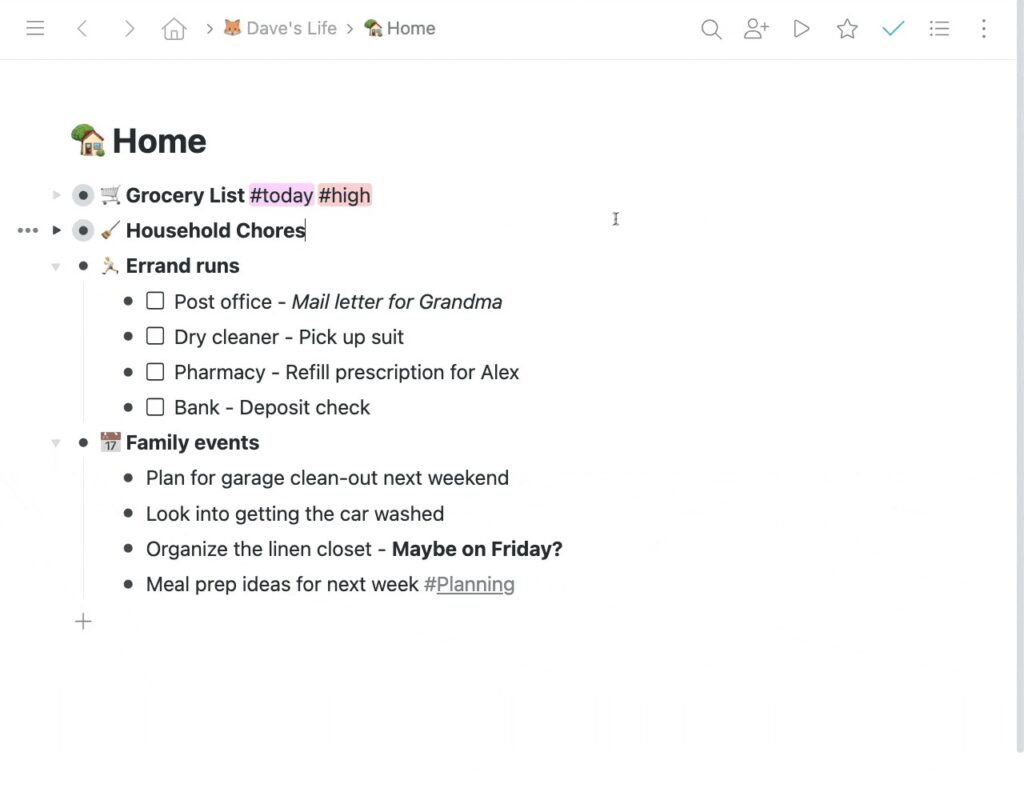
Workflowy is one of the best outliner apps available, focusing exclusively on nested bullet points for those who prefer to organize their ideas in lists. If you naturally think hierarchically, WorkFlowy offers a beautifully simple solution without unnecessary complexity.
The zoom feature is what I find most useful about WorkFlowy. Click on any bullet point, and it becomes the temporary root of your document. This lets you focus on one section at a time without getting distracted by everything else, making it perfect for managing complex outlines and reducing information overload. For breaking big ideas into smaller components, this feels very natural.
Despite its apparent simplicity, I’ve found WorkFlowy surprisingly versatile in practice. I’ve used it for planning articles, managing projects, creating documentation, and even building a personal wiki, all using just nested bullet points. The clean interface keeps me focused on content instead of fiddling with formatting.
Recent updates have added “Mirrors” (the ability to have the same bullet appear in multiple places) and “Boards” (a Kanban-style view of your lists), making it more powerful for organizing information. These features address the traditional limitation of hierarchical organization by allowing items to exist in multiple contexts simultaneously.
Workflowy is ideal if you find other note apps overwhelming. It does one thing, outlining, extremely well, without trying to be everything for everyone.
What’s good:
- Super clean, distraction-free interface
- Create infinitely nestable lists
- Focus on one section at a time with zoom
- Tag and filter content across your workspace
- Share specific sections with others
- Mirrors feature for referencing content in multiple places
- Board’s view for Kanban-style organization
- Improved formatting (bold, italic) and embedded previews
Not so good:
- Limited formatting options
- No calendar or advanced features
- The free plan limits the number of items
- Works primarily in a browser
- No graph view for visualizing connections
- Relies on tags rather than explicit backlinks
Pricing: Free with limits; $4.99/month or $49/year for Pro with unlimited bullets and uploads
Other Notable Second Brain Apps
Several other note-taking apps are also worth considering for your second brain system, depending on your specific needs:
Evernote was a pioneer in digital note-taking and still offers robust features like web clipping, document scanning, and cross-platform availability. I’ve used it for years before trying alternatives. Recent updates have improved its interface and added AI capabilities. The free plan offers basic features, while premium plans ($15/month) provide advanced search and organization tools.
Bear is a beautiful, Markdown-based notes app for Apple devices. I love its clean, distraction-free writing experience with excellent typography and a thoughtful tagging system. At $3/month, it’s an elegant upgrade from Apple Notes if you prefer a more refined writing environment.
Craft provides a polished, design-focused approach to notes with an Apple-first philosophy. It excels at creating visually appealing documents with block-based editing similar to Notion. At $10/month, it appeals to users who value aesthetic presentation alongside functionality.
Mem takes an AI-first approach to notes, automatically organizing and surfacing relevant information when you need it. Its strength lies in reducing manual organization through intelligent connections. At $14.99/month, it’s particularly useful if you prefer your system to organize itself rather than manually creating structures.
Roam Research pioneered many of the bidirectional linking features now found in Obsidian and Logseq. Its outline-based approach and powerful query capabilities make it excellent for academic research and complex knowledge work. At $15/month, it remains popular with dedicated note-takers despite newer alternatives.
Notesnook is a privacy-focused, end-to-end encrypted alternative that emphasizes security without sacrificing usability. It offers a clean interface, Markdown support, and multi-platform availability. Priced at $4.99/month or $49.99/year, it appeals to privacy-conscious users who want a polished note-taking experience without the technical setup required by some other private options.
How to choose the right Second Brain app
Finding the right note-taking app depends on your personal workflow and needs. Here are some quick guidelines based on my testing:
For teams and complex projects: Try Notion or Coda if you need databases and collaboration.
For privacy and local storage: Choose Obsidian, Logseq, Anytype, or Joplin to keep your data on your device.
For Apple users: Apple Notes might be all you need, especially with the new linking features in iOS 17.
For students: RemNote is designed specifically to help you remember what you learn through flashcards.
For outline lovers: Workflowy or Logseq work great if you organize information hierarchically.
For budget-conscious users: Check free options like Obsidian, Logseq, or Joplin, or one-time purchase apps like UpNote ($39.99 lifetime).
When starting with any note-taking app, keep it simple at first and add complexity as you go. I’ve given up on many apps because I tried to build perfect systems immediately rather than letting them evolve naturally.
Remember, the best app is the one you’ll actually use consistently. Even the most powerful system fails if it’s too complicated for daily use.