Why Google Keep Is Still the Best Free Note-Taking App in 2025

If you’ve ever tried to find the “perfect” note-taking app, you know how quickly things can spiral. Every year, there’s a new one promising to fix what the last one missed. I’ve fallen for it more times than I can count downloaded the latest Notion templates, trialed obscure markdown editors, spent hours tweaking Obsidian plugins, and even tried to make Apple Notes do more than it was ever meant to.
Somehow, despite all the noise and my own shiny toy syndrome, I keep ending up back where I started: Google Keep.
There’s nothing flashy about Keep. It doesn’t pretend to be a second brain or claim to revolutionize productivity. But after a decade of app hopping, Keep still feels like the one I can trust. If you want a note-taking tool that’s simple, cross-platform, and genuinely free—no hidden paywalls, no device limits, and no learning curve—it’s still hard to beat.
Here’s why, even in 2025, I think Google Keep is the best free note-taking app for most people.
Getting started with Google Keep feels almost too easy
Some apps hit you with onboarding tutorials, feature tours, or aggressive upgrade prompts before you even write your first note. Google Keep does the opposite. You open it—on your phone, your laptop, or any browser—and you’re in. No setup, no fuss. Just a blinking cursor, ready for whatever you want to jot down.
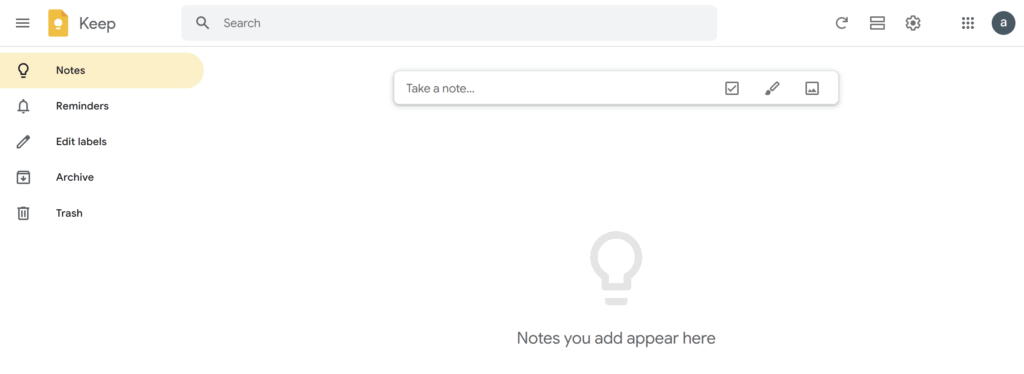
That frictionless start is what drew me in years ago, and it’s still the reason I recommend Keep to anyone who needs to capture ideas fast. There’s no pressure to organize things a certain way or to “optimize your workflow.” You just write. If you want, you can color-code or label your notes. If not, it works just as well.
But that’s the point: Google Keep is designed to be used, not learned.
What makes Google Keep different from the rest
Most note-taking apps today follow the same script: offer a free tier that sounds generous, then chip away at it until you’re frustrated enough to pay. Maybe you can only use two devices. Maybe rich formatting or image uploads are locked behind a paywall.
Or maybe, like Notion or Evernote, you get nudged to “upgrade” every time you run into a basic limit.
Keep skips all of that. Every feature—labels, checklists, image attachments, collaboration, reminders, voice notes, and even text extraction from photos—is available from the start, and there’s no premium version waiting to surprise you later.
Syncing is instant. Make a change on your phone, and it’s on your laptop before you even notice. Offline editing works on mobile, and updates get pushed the next time you’re connected. I’ve never had to worry about data loss, sync conflicts, or version history disappearing. Even when I’ve tried to “break” Keep with rapid edits or multiple devices, it just works.
No hidden costs or premium traps
Google Keep is one of the few big-name apps that genuinely offers everything up front. There are no usage caps, no upgrade nags, and no paid features lurking in the background. Your notes use your Google account’s free 15GB of storage, which you share with Gmail, Drive, and Photos. For the kind of notes most people keep—text, checklists, and the occasional photo—you’d need to be a digital packrat to ever fill it up.
And if you ever want to leave, Google Takeout lets you export your entire Keep archive as HTML or JSON. You’re never locked in, which I wish more free apps would offer.
A quick note about storage:
Keep stores your notes in your Google account’s 15GB, which is shared with Gmail, Drive, and Photos. For regular note use, you’ll probably never notice, but large images and voice notes do count toward your quota.
Everywhere you need it
One thing I can’t stand is a note app that only works on certain devices or requires a particular ecosystem. Keep works everywhere.
- Android and iOS: Smooth, responsive, offline-friendly
- Web: Access at keep.google.com on any computer
- Chrome and Edge extension: Save links, snippets, or notes without leaving your browser
- Progressive Web App (PWA): Install on desktop for a standalone experience—just visit Keep in Chrome and choose “Install”
Switching between phones, or moving from work to home? Your notes are there. There’s no device limit, and no sync delays. You don’t even need to be a Google power user to make the most of it.
How Google Keep fits into daily life
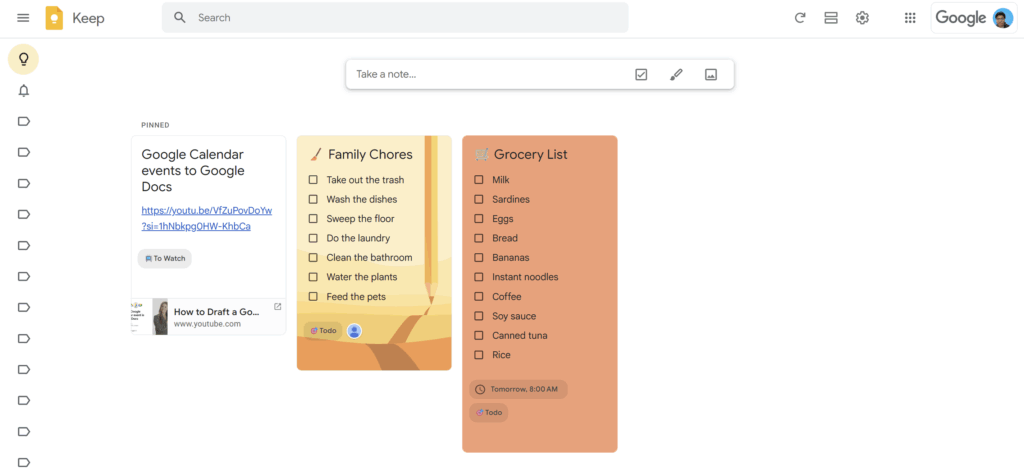
I’ve used Keep for everything from shopping lists and article drafts to recording dreams (yes, really) and tracking minor home repairs.
- Pin your must-see notes so your top priorities never slip off the screen
- Share a list with your partner or roommate; everyone can add or cross off items in real time
- Clip quick quotes or links while browsing, and send them straight to Keep for later
- Set reminders for anything you can forget—groceries, birthdays, bills, or that idea you had in the shower
Labels keep things organized if you want, but aren’t required. For me, it’s less about perfect organization and more about knowing I can find anything with a quick search.
You May Also Read:
Built for speed, not complexity
I’ve tried apps that promise to turn you into a superhuman note-taker. After a few weeks, I always find myself longing for the simplicity of Google Keep. There’s no onboarding maze, no “second brain” jargon, and no overwhelming options.
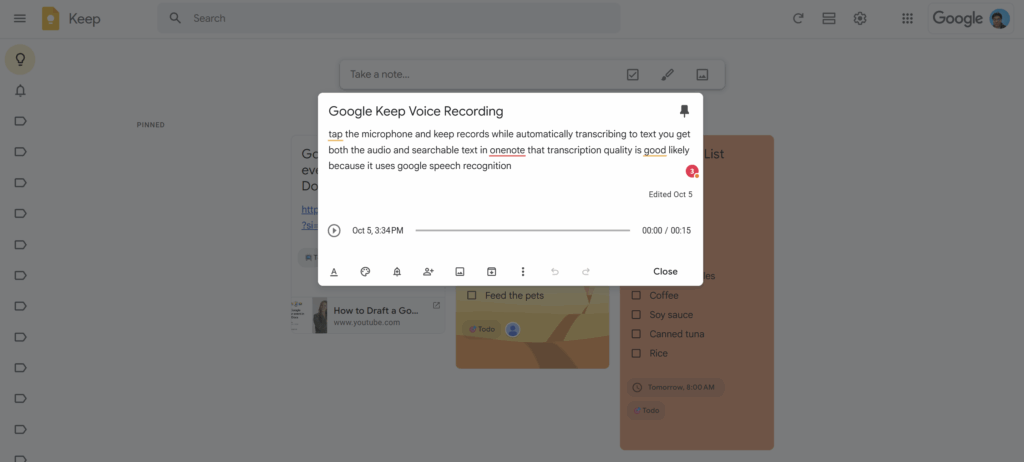
- Need to capture a quick voice memo? Tap the mic and talk—Keep saves both the audio and a surprisingly accurate transcription.
- Want to grab text from a photo or screenshot? Upload it and use the OCR tool—great for recipes, business cards, or conference slides.
Even when my account is overflowing, Keep never slows down. Google’s infrastructure keeps everything in sync, and the search works just like you’d expect from Google: fast, forgiving, and thorough.
Seamless integration with Google Workspace
One of Keep’s low-key strengths is how it weaves into the rest of Google’s tools. If you’re writing an email in Gmail or working on a Google Doc, your notes are a click away in the sidebar. Planning your week in Calendar? That packing list or meeting agenda is right there too.
I rely on this more than I expected—especially when I’m researching, collaborating on projects, or just need a reminder without switching apps. And since Keep is included with Workspace, you never have to install or pay for something extra at work or school.
Google’s surprising track record with Keep
If you’ve followed Google for any time, you know the company has a reputation for killing products. Keep is a rare survivor. Launched in 2013, it’s now over a decade old and still gets big updates—most recently, a Material Design refresh, better sorting, and version history.
That integration into Google’s core apps is why I’m more confident recommending Keep than most indie or venture-backed alternatives. It’s not an experiment; it’s a staple.
What you actually get with Keep
- Unlimited notes and devices—no artificial caps
- Real-time sync that never seems to fail
- Reminders that just work (by time or, on mobile, by location)
- Voice memos and instant transcription
- Image notes, with accurate text extraction
- Label and color-based organization
- Checklists for anything that needs ticking off
- Collaboration with anyone via email
And maybe most importantly, search that actually works. If you remember a word, a date, or a label, you’ll find your note.
Some honest limitations
It’s not all perfect. Keep is intentionally simple, and sometimes that’s a drawback.
Formatting and structure are basic
- No bold, italics, or headers until recently—and still no bullet/numbered lists or markdown. Formatting options are most complete on mobile, but the web app lags behind, and there are no different fonts, heading styles, or advanced layouts.
- You can’t attach PDFs or other files—just images (limited to 10MB each) and voice notes.
- Each note has a maximum length of 20,000 characters, which is enough for most uses, but long-form writers or power users might eventually bump into this cap.
Organization stays simple
- No folders or nested labels. If you’re managing a big research project, this can get messy fast.
- There’s a hard limit of 50 labels per account. That’s usually more than enough, but it’s worth knowing if you rely heavily on tags for organization.
Desktop experience depends on your connection
- There’s no native app for Mac or Windows. You can install the web version as a PWA, but you’ll need an internet connection. Offline mode is only reliable on mobile, unless you’re using Chrome’s offline mode.
Task management and collaboration are basic
- Checklists are simple, and only one person can check off items at a time on shared notes—there’s no support for subtasks, priorities, or project timelines.
- When you share a note, the other person can edit it—there’s no view-only or comment-only mode. It’s not built for complex teamwork.
Privacy is Google’s privacy
- All notes are stored on Google’s servers and subject to their privacy policy.
- No end-to-end encryption. If you need maximum privacy, Standard Notes or Notesnook is a better fit.
Exporting notes isn’t seamless
- There’s no quick way to export notes as PDFs or other common formats. You’ll need to copy and paste, or use Google Docs for more flexibility.
None of these have pushed me away, but it’s worth being honest about what you’re giving up.
You May Also Read:
What I wish Google Keep would improve
My personal wish list is pretty short:
- Native desktop app with true offline support
- Better text formatting (especially bullet lists)
- Nested labels for better organization (and maybe raise the 50-label cap)
- More granular sharing (sometimes “edit” is too much)
- Smarter checklist collaboration, with subtasks or priorities for shared lists
These aren’t dealbreakers, but I hope Google is listening.
When Google Keep makes sense—and when it doesn’t
If you want a simple, reliable notes app that’s free and always there, Keep is a no-brainer. It’s for people who just want to jot things down, make lists, share reminders, and not overthink it.
If your workflow depends on deep hierarchies, heavy formatting, privacy controls, or you want to build a “second brain,” you’ll want to check out Notion, Obsidian, Notesnook or Standard Notes.
But for everyone else, Keep covers the basics and then some—without a steep learning curve or a single upgrade prompt.
How Google Keep stacks up with the competition
| App | Best for | Free plan limits | Ideal user |
| Google Keep | Notes, reminders, sharing | No note cap; storage shares 15GB with Gmail/Drive/Photos | Anyone, especially Google users |
| Notion | Databases, structured docs | 5MB file limit, block limits on free plan | Project managers, planners |
| Evernote | Attachments, web clipping | 1 device, 250MB/month uploads, limited search | Professionals, researchers |
| OneNote | Windows integration | Storage tied to 5GB free OneDrive | Windows users, Office subscribers |
| Obsidian | Markdown, local storage | Free for local; paid sync, plugin extras | Writers, PKM/“second brain” users |
| Standard Notes | Privacy, plaintext notes | Unlimited notes/tags/devices; plaintext only, no folders or formatting | Privacy-first, minimalist users |
The bottom line
After trying just about everything, I still recommend Google Keep to anyone who wants notes without headaches. It works everywhere, doesn’t cost a cent, and never nags you to upgrade. It’s not perfect, and it’s not for power users, but for most people, it’s quietly the best.
Try it for a week. You might find, as I did, that the best productivity tool is the one that lets you stop thinking about productivity apps altogether.