6 Google Docs Features That Changed How I Write
Google Docs has been part of my workflow for over ten years, and for most of that time, I never touched the settings. I opened documents, typed in them, and shared the link when I was done. The tool did what I needed, and I didn’t think much about whether I was using it well.
Then I started writing longer pieces and working on multiple projects at the same time, and things that never bothered me before started getting in the way. Page breaks are interrupting my scroll. Research is scattered across too many files. Editing passes that missed problems I should have caught earlier. The fixes turned out to be Google Docs features that were already there. I just hadn’t turned them on yet.
I stopped writing on simulated paper and never looked back
Pageless Mode turns Google Docs into a distraction-free writing surface
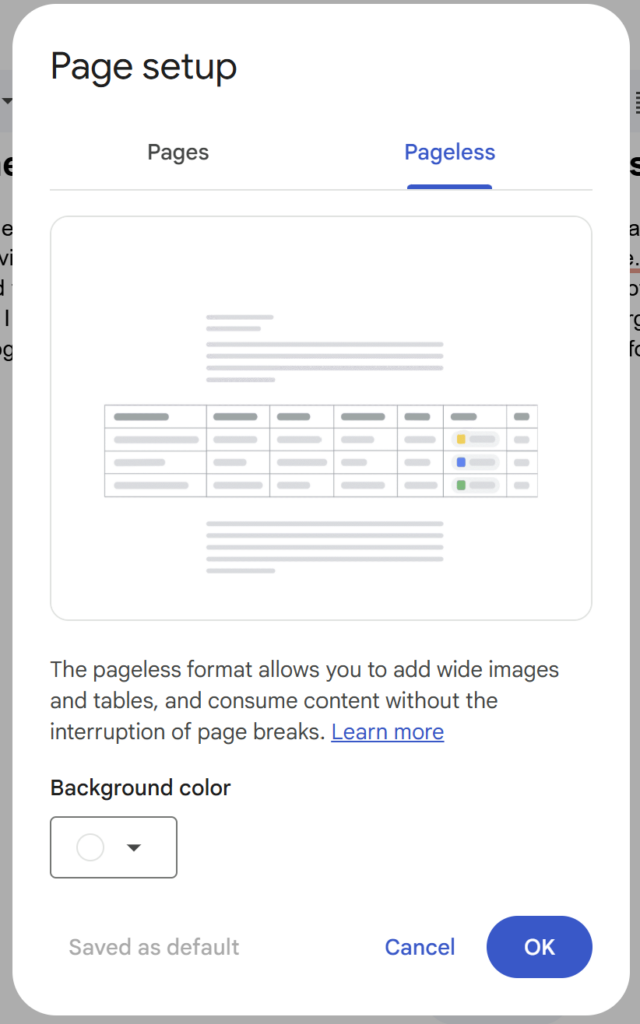
Go to File > Page Setup > Pageless, then hit “Set as default” so every new document opens this way. That one setting removes the fake page breaks, margins, and grey gaps that Google Docs inserts by default to simulate a printed sheet of paper.
I put off switching for a while because it seemed like a cosmetic change that wouldn’t matter much. I also assumed something would break, maybe PDF exports would look different, or formatting would shift in ways I’d have to fix later. Neither happened.
What did happen was that writing in Google Docs stopped feeling choppy. Long paragraphs no longer got split across two “pages” with a gap in between. Wide tables stopped getting clipped at invisible margins. The whole document became a single continuous scroll, and that small visual change made it noticeably easier to stay in a draft without getting pulled out of it.
Going back to the page view now feels like a step backwards. The few times I’ve needed it for a print-formatted document, I couldn’t wait to switch it off again.
I keep my entire project inside one document now
Document Tabs replaced the mess of having five files open for one piece of writing
Before Document Tabs existed, every writing project meant opening multiple Google Docs. The draft lived in one, research in another, an older version I wasn’t sure about in a third, and maybe notes in a fourth. I’d lose track of which browser tab had which file and waste time clicking around.
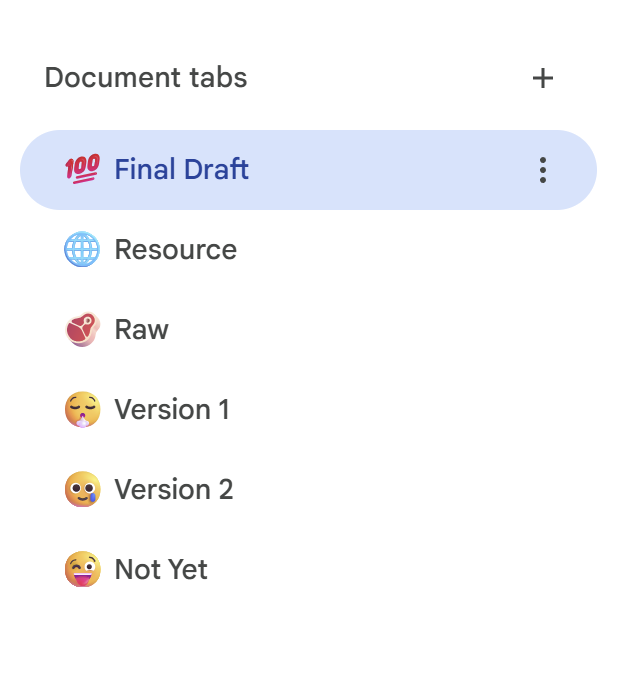
Create a new tab from the panel on the left side of any Google Doc. Right-click it to rename it, add an emoji, or nest subtabs inside it for longer projects. Each tab gets its own shareable link, so you can send a collaborator directly to a specific section.
I was skeptical that this would feel any different from just having multiple files open side by side. It does. Having everything in one document means I never have to wonder which file something is in. My usual setup is one tab for the working draft, one for research and reference material, and one for sections I’ve cut but might want later. Switching between them takes a single click, and nothing gets lost in a pile of identical-looking browser tabs.
The part I didn’t anticipate was how it changed the way I think about organizing projects. Documents used to be containers for single things. Now they’re containers for entire projects.
I leave comments for myself, and it fixed my editing process
The comment feature works as a self-editing system if you stop thinking of it as a collaboration tool
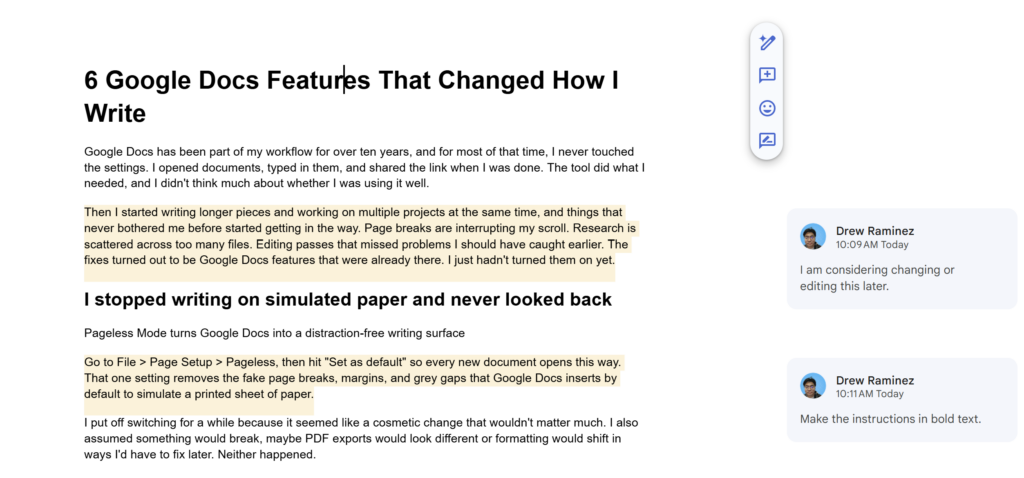
Highlight text, press Ctrl+Alt+M on Windows or Cmd+Option+M on Mac, and type a note. The comment stays pinned to that exact spot in the document until you resolve it.
I picked this up by accident. I was mid-draft, hit a paragraph that needed a source, and didn’t want to break my momentum to go look for it. So I left a comment that said “Find a stat for this” and kept going. By the end of the session, I had six or seven comments scattered through the draft, each one flagging something I needed to come back to.
At first, it felt like I was creating extra work for later. But the alternative was worse. I used to try holding those mental notes while writing, and by the time I finished a draft, most of them had evaporated. The ones I did remember were vague enough to be useless. “Something was wrong near the middle” is not helpful editing feedback, even from yourself.
Now every draft ends with a round of comment review. Each note is attached to the exact sentence or paragraph it’s about, so there’s no hunting or guessing. I click through them one at a time, fix what needs fixing, and resolve each comment when it’s done. It turned editing from a vague “read through it again” process into something closer to a checklist.
I let Docs read my drafts out loud instead of doing it myself
The Listen to This Tab feature catches problems that your eyes have learned to ignore
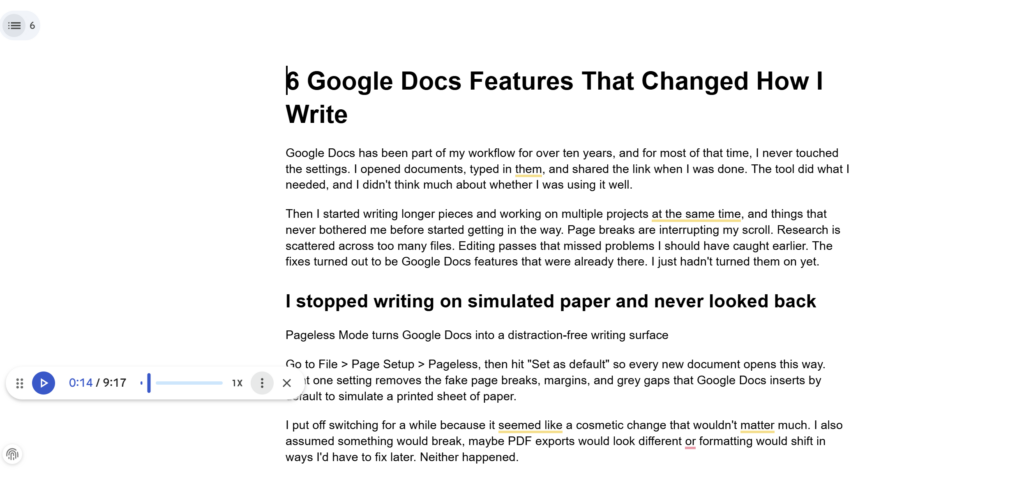
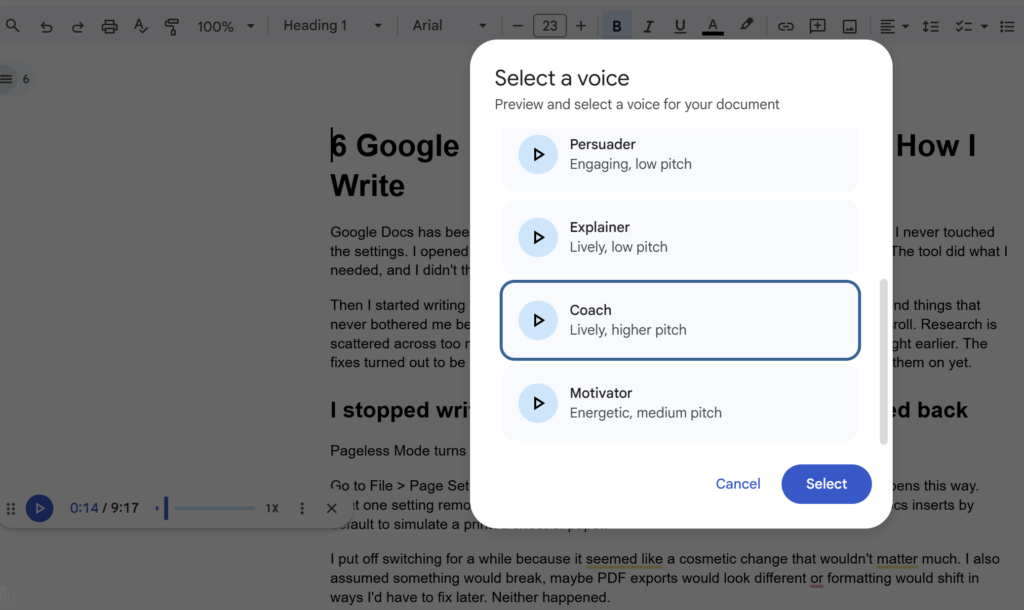
Click the headphones icon in the top right corner of Google Docs. Choose a voice and speed, and the document reads itself to you out loud.
I ignored this for months. It looked like an accessibility feature, and I assumed it had nothing to offer someone who could read the document perfectly well on their own.
That assumption was wrong. Reading your work out loud has always been one of the best editing techniques, because hearing words forces a different kind of attention than scanning them silently. Sentences that look fine on screen can sound clunky or repetitive when spoken. Transitions that seem to work visually turn out to connect nothing when you hear them in sequence. I’d been doing this manually for years, reading drafts to myself at my desk, but my voice would give out halfway through longer pieces. I’d rush the back half right when it needed the most scrutiny.
Having Docs read the draft lets me listen for problems without tiring out. I can pause the moment something sounds off, fix it, and resume. I use this most toward the end of the editing process, when I’ve been through the draft so many times that my eyes have started skimming instead of reading. Listening resets that attention in a way that re-reading silently never does.
I started deleting paragraphs without fear because Version History has my back
Every version of every Google Doc is saved automatically and recoverable at any time
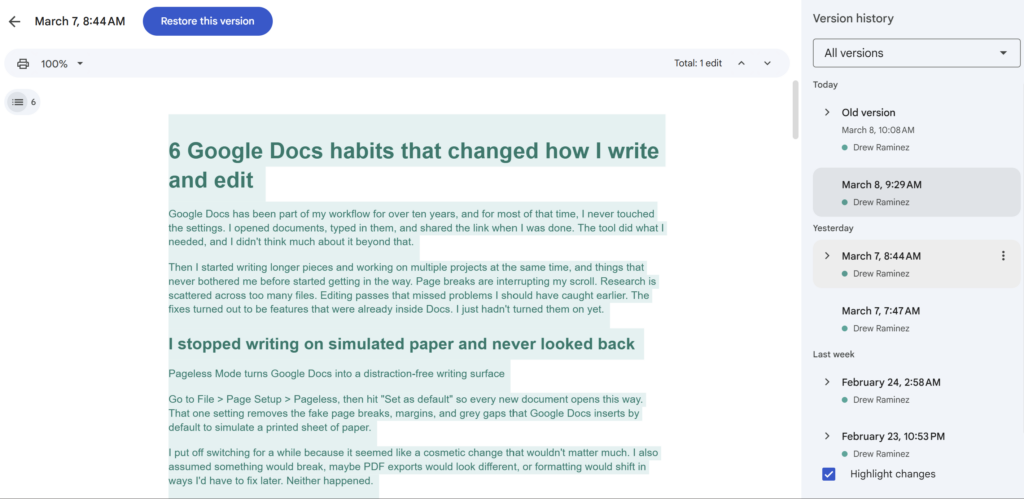
Go to File > Version History > See Version History. What you get is a full timeline of every saved state of the document, scrollable and restorable. You can also name specific points in the timeline with labels like “first draft” or “before major restructure” so you don’t have to scrub through dozens of autosave entries to find what you need.
I used to hoard deleted text. If I cut a paragraph during editing, I’d paste it into a separate document or leave it at the bottom of the draft with a note. The idea was to protect myself in case I needed it later, but what actually happened was clutter. Piles of discarded sentences in files I’d forget to check.
Once I realized that Version History keeps everything, I stopped doing that. Deleted a paragraph three days ago and want it back? It’s there. Rewrote a section twice and want to compare the first attempt to the latest one? Also there. Nothing is permanently gone unless you delete the entire document.
That changed how I edit. I cut more aggressively now. Paragraphs I’m not sure about get removed instead of relocated to a holding area. Sections that need rewriting get replaced entirely instead of being tweaked line by line. The work moves faster because I’m not spending energy protecting words that might not deserve to stay in the piece.
I collapse sections I’m not working on so the document stays manageable
Collapsible headings turn long documents into something closer to an outline
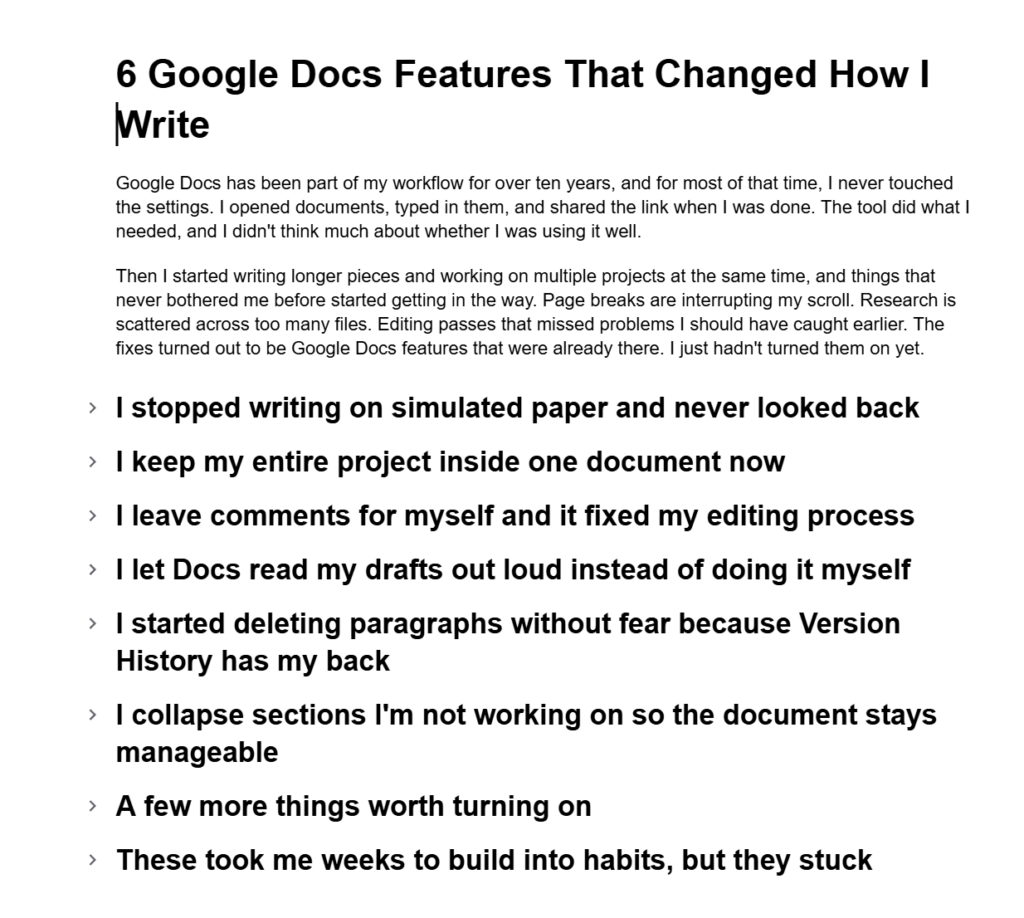
Hover over any heading in a Google Doc. A small triangle appears to the left. Click it, and everything under that heading folds out of view until the next heading of the same level.
I found this by accident, and I’m not sure Google ever officially announced it. Before I started using it, working on a long document meant scrolling past every section to reach the one I needed, or using Ctrl+F to search for a word I half-remembered. Both were slow, and both pulled my attention through content I wasn’t trying to focus on.
Now I collapse every section I’m not actively editing. The document shrinks to just its headings, and I can see the full structure at a glance. When I need to jump between the introduction and the conclusion to check for consistency, I collapse everything in between and get both on the same screen. When I’m done comparing, I expand the sections and keep working.
An unexpected side benefit is that the feature made me more consistent about using headings in my documents. Collapsible sections only work when the document has a clear heading structure, so there’s a practical incentive to maintain one. Over time, that incentive improved how I organize my writing even when I’m not collapsing anything.
A few more things worth turning on
These didn’t need full sections, but they’re useful enough to mention.
Markdown auto-detect is under Tools > Preferences. Enable it, and two asterisks bold a word, a # followed by a space creates a heading, and a hyphen followed by a space starts a bullet. It only covers basic Markdown syntax, but if you also use Obsidian or Notion, having those shortcuts carry over into Docs is a relief.
Smart Chips appear when you type @ anywhere in a document. The menu lets you link Drive files with a hover preview, embed Calendar events, insert dropdown menus with custom options, or add voting widgets. I use the dropdown chip the most for tracking section status in shared documents.
Building Blocks are under Insert > Building Blocks. The meeting notes template is the one I reach for, because it pulls the date and attendees directly from Google Calendar. It saves the two minutes I used to spend rebuilding that layout from scratch every time.
These took me weeks to build into habits, but they stuck
None of these changes felt significant on their own. Switching to Pageless Mode took ten seconds. Leaving a comment instead of a mental note takes about the same time. But the cumulative effect of all six was hard to miss after a few weeks of using them together. My drafts got cleaner, my editing got more focused, and I stopped losing things I’d written across scattered files and forgotten browser tabs. If you write in Google Docs regularly and even one of these sounds useful, try it for a week and see what changes.