Diarium Review: My Honest Take After 2 Years of Using It
I’ve been on and off with digital journaling for years. My entries used to be scattered across different apps, Google Docs, and a few notebooks I never finished. Around mid-2024, I decided I was tired of bouncing around and wanted to settle into one app for good. After a few weeks of testing with different apps, I landed on Diarium, and I’ve been writing in it almost every day since.
This Diarium review is what nearly two years of my daily use looks like. If you’re trying to decide whether Diarium is worth your time and money, I think this should help.
TL;DR: Is Diarium worth it?
Short answer, yes, especially if you write on Windows and you’re tired of subscription apps.
| What I like most | Reliable cross-platform sync, distraction-free editor, On This Day, location and map view, one-time payment |
| What I wish it had | Tables, checkboxes, inline images, embeds, web access, web clipper |
| Best for | Long-form daily journalers, Windows users, travelers who want a location log, people who hate subscriptions |
| Not great for | Anyone who needs a web app, fans of inline media in long entries |
| Price | One-time purchase per platform: $9.99 on Windows and macOS, around $4.99 on Android and iOS. Free tier on mobile and Mac with a 7-day Pro trial |
| My verdict after 2 years | I’m still using it daily and haven’t been tempted to switch, which is the most honest thing I can say about a journaling app |
What is Diarium?
For anyone landing on this review without context, Diarium is a journaling and diary app made by Timo Partl, an independent developer based in Germany. It runs natively on Windows, macOS, iOS, and Android, and syncs through your own cloud storage instead of the developer’s servers. It also won the Microsoft Store Award in 2024, which lines up with how polished the Windows app feels.
What sets it apart from most modern apps is the pricing. There’s no subscription. You pay once per platform, and that’s it. No upgrades nagging you, no feature gates that grow each year. I’ll get into the pricing nuances later because the per-platform model isn’t perfect, but it’s still one of the main reasons I went with Diarium in the first place.
Why I switched to Diarium in the first place
Before Diarium, I’d already been using a few different apps for journaling, and my entries were scattered all over the place. The breaking point was when I tried to look up something I knew I’d written about months earlier and couldn’t even remember which app I’d written it in.
That afternoon, I made a list of what I actually needed in a journaling app:
- Same app on Windows and Android, with reliable sync
- Distraction-free writing experience
- A way to look back at past entries easily
- Some kind of organization (tags, dates, search)
- Export options, so I could leave the app if I wanted to
- No subscription, ideally
I tested around 5 or 6 apps over a few weeks. Diarium kept coming out on top in the most important areas, especially sync and the writing experience itself. It’s been almost 2 years now, and I have well over 3,000 entries inside the app.
What I love about Diarium after two years
Below are the things that have kept me there.
Cross-platform sync that actually works
This was my non-negotiable. I write most of my long entries on my Windows desktop because I type faster there, and I write quick reflections, voice notes, and travel-related entries on my Android phone.
Whichever device I open next, I need my entries to be there.
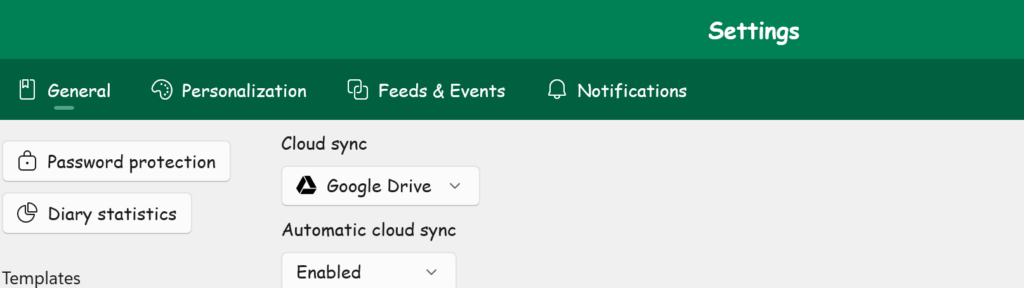
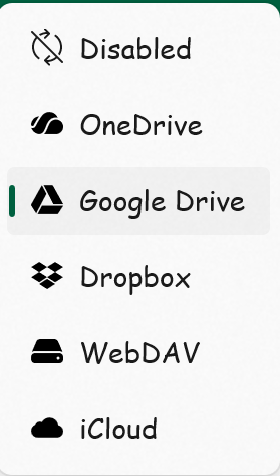
Diarium handles sync through your own or preferred cloud storage. You can pick OneDrive, Google Drive, Dropbox, iCloud, or even WebDAV. I’m using Google Drive, and so far in 2 years, I haven’t had a single sync conflict, lost entry, or duplicate.
You can also skip cloud sync entirely and keep everything local on a single device, which is great for privacy. If you go that route, though, set up a regular backup. The export feature makes that easy, but you do have to actually do it.
One thing worth knowing upfront: cloud sync is a Pro feature, and Pro is licensed per platform. If you want sync between your Windows PC and your Android phone like I do, you’ll need to buy Pro on both. More on that in the pricing section.
A distraction-free editor I keep coming back to
The Diarium editor is the closest thing to a blank page I’ve found in any modern app. There’s no toolbar fighting for attention, no AI prompt suggesting what to write about, no write badge in the corner. I open the app, hit the new entry button, and I’m typing.
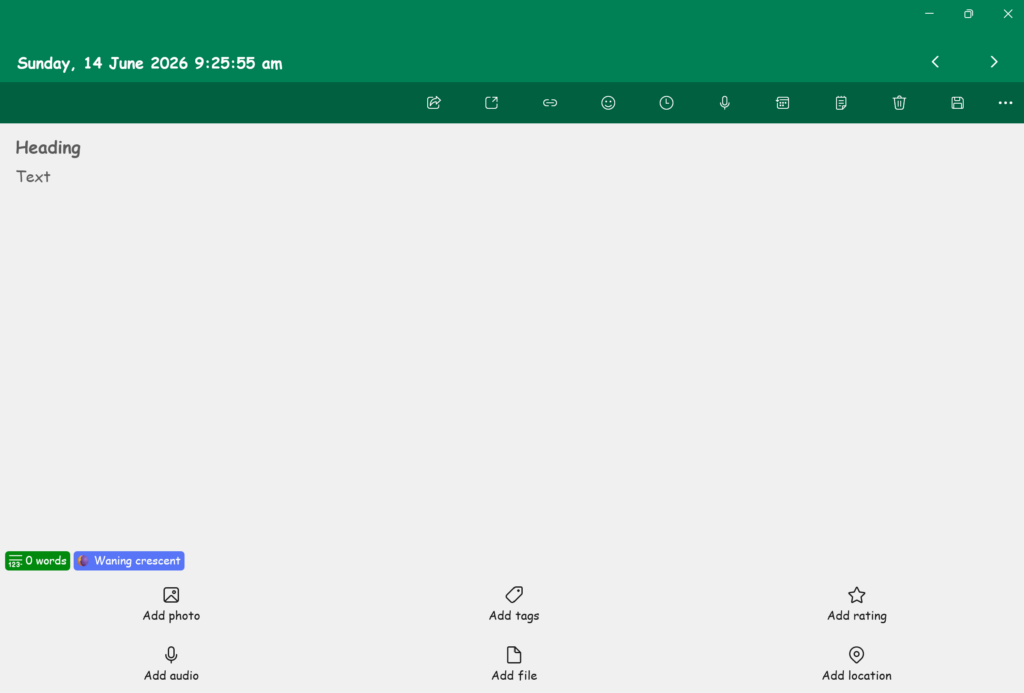
What’s interesting is that the moment I start writing, I tend to write more than I planned to. I’ll sit down, meaning to jot a sentence about my day, and I end up with three paragraphs about an anime I just finished, or a tangent about something I read last week. There’s something about the calmness of the interface that lowers the activation energy.
The Windows app supports a wide range of fonts, which I appreciate as someone who likes to switch between Sans Serif and Comic Sans depending on mood. The Android app is more limited in fonts, but the typing experience itself is fluid and lag-free, even on entries that are 1,500 words long.
You also get the formatting essentials, including bold, italic, underline, strikethrough, bulleted and numbered lists, text highlights in different colors, and internal links to other journal entries.
The two I lean on most are bullet points and highlights. Bullet points help me break out tangled thoughts when my entry starts running long, and highlights let me mark sentences I want to revisit later, like personal quotes or small realizations. Small thing, but two years in, it’s something I use almost daily.
The location feature changed how I journal
I almost ignored this feature in my early weeks because I assumed location tracking was a privacy issue I didn’t want to think about. Then I tried it, and now I can’t imagine journaling without it.
Diarium can automatically pull your location into each entry based on your device’s GPS, or you can add it manually. On Android, this happens silently in the background when you create an entry. On Windows, you can type in a location or pick from suggestions.
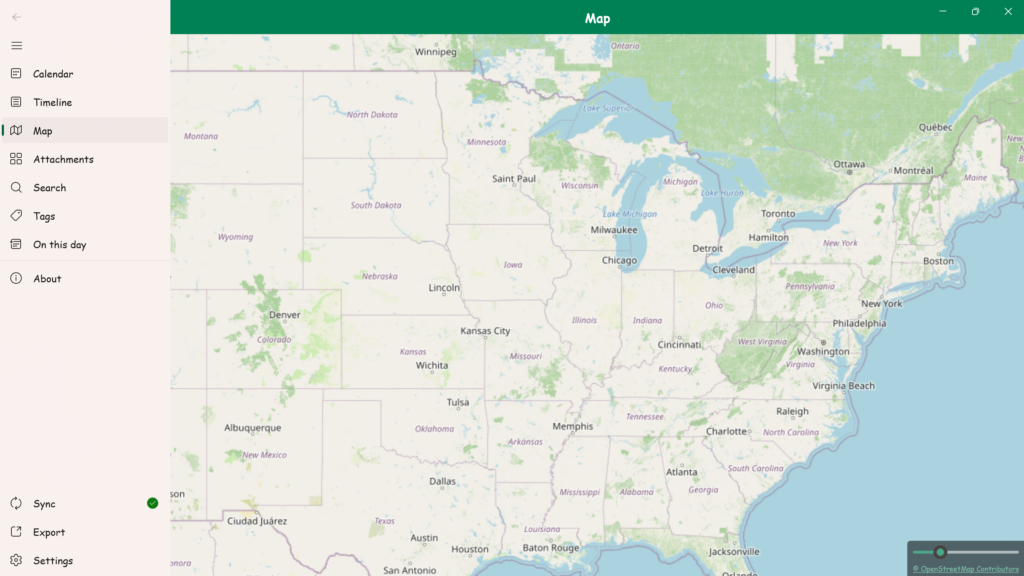
The real magic is the map view. Diarium plots all your entries on a world map based on the location data attached to them. When I open my map view now, it’s basically a soft visual log of two years of life. The cluster of dots in Manila, where I live, includes a handful from a trip down south, a few scattered from coffee shops I worked from for a week.
It also detects location data embedded in photos. If I attach an image with GPS metadata and I haven’t already set a location, Diarium will use the photo’s location for the entry. This is a nice touch for travel journaling because the photo itself remembers where it was taken.
If location tracking gives you pause, you can turn it off entirely or only enable it manually.
On This Day is the feature I open the app for
When I open the app on my phone, the first thing I check is the On This Day tab. It surfaces every entry I’ve written on this same calendar date in past years. So today, opening the app shows me what I wrote on this date in 2024 and 2025.
I keep finding things in there I’d completely forgotten. Realizations I had and never followed up on, plans I made that turned out differently, small moments with friends or family that I’d otherwise have lost. Sometimes I read an old entry and can’t quite believe I wrote it.
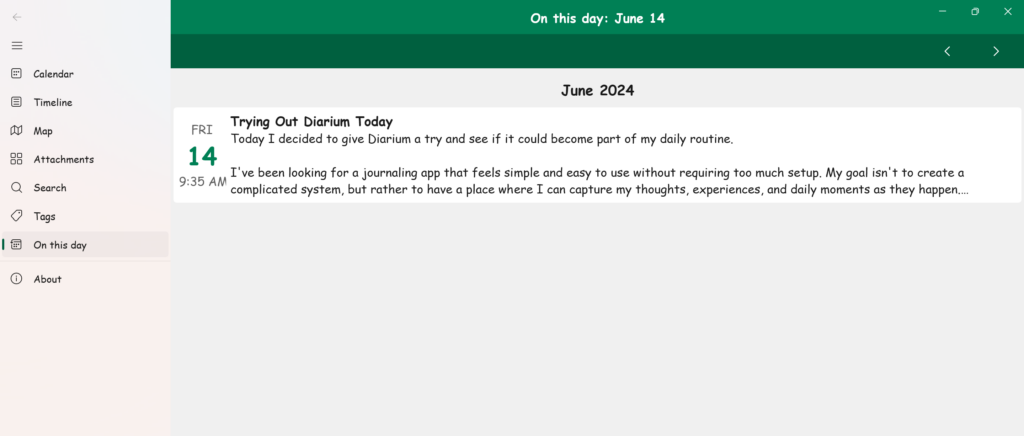
The On This Day tab itself only shows entries from today’s date, not other dates. But there’s a small workaround if you want to check On This Day for a different day, like April 30 instead of today. Just open the entry for that date (or a blank entry if you haven’t written one yet), and you’ll see an On This Day button in the toolbar above. Click it, and Diarium will pull up your past entries for April 30 across previous years. I use this often when I want to look ahead or revisit a specific day.
Notifications can also be set to remind you to check past entries or to write a new one, with configurable frequency, which I appreciate.
Three ways to view your entries
Diarium gives you three different ways to browse your journal, and I genuinely use all three for different things.
Calendar view is the default and the one I use most. It shows a monthly calendar with markers on days you’ve written, and you can tap any day to see the entries from that date. This is how I navigate when I want to find an entry from “sometime in March.”
Timeline view is a vertical scroll of your entries in chronological order. I use this when I want to read through a stretch of time, like reviewing a whole month, or when I’m doing a quarterly reflection.
Map view, as I mentioned earlier, plots entries by location. I open this less often, but when I do, it’s usually because I’m trying to remember the timeline of a trip or find a specific coffee shop where I had a particular thought.
Tags, People, and Trackers
Diarium handles organization through three different but related systems.
Tags are the standard sort-by-topic feature. I have tags like work, family, reading, health, and travel. When I want to see only my reading entries, I filter by the reading tag. Nothing groundbreaking, but it works the way you’d expect.
People is a tag system specifically for the humans in your life. You can add a person to an entry, and Diarium tracks how often each person appears. This is genuinely useful for two reasons. First, it surfaces patterns I wouldn’t notice otherwise, like realizing I’ve barely written about a close friend in three months. Second, it lets you pull up every entry that mentions a specific person, which is a meaningful thing the first time you do it for someone important to you.
Trackers are the most flexible of the three. You can build custom trackers for things like mood, sleep hours, glasses of water, weight, or anything else you want to log alongside your writing. I use a simple mood star rating per entry and a tracker for reading. If you wanted to turn Diarium into a habit tracker, mood journal, or weight log, you could do that without leaving the app.
The flexibility is the point here. You can keep it simple with just tags, or build something more structured. Diarium doesn’t push you in either direction.
Attachments: photos, audio, video, and files
Most journaling apps support photos, and a few support audio. Diarium supports all of the above and more. You can attach photos and videos, audio recordings (which you can record directly inside the app), PDFs, and documents like Word and Excel files, and pretty much any other file format.

There’s also a dedicated Attachments tab that aggregates every photo, video, and file you’ve uploaded across your journal. So if I want to find a specific photo without remembering which entry it was in, I scroll through the attachments view.
The one caveat I’ll mention now and revisit later is that attachments aren’t inline. They appear at the bottom of the entry, not in the middle of your text. For most of my entries, that’s fine, but for longer reflective pieces where I want to anchor a paragraph to a specific photo, it’s an awkward limitation.
Speech-to-text dictation
Worth flagging for anyone who prefers speaking over typing. Diarium has accurate speech-to-text dictation built in, and I’ve used it during long walks when I want to capture a thought but don’t want to type with one hand.
The recognition quality is good, though obviously dependent on your device’s microphone and how noisy the environment is. If you find typing painful, or you just prefer narrating your day, this is a real option, not a token feature thrown in for marketing purposes.
Feeds and Events: integrations that quietly work
This is the section that sells a lot of people on Diarium, and I can see why. Under Feeds & Events, you can connect Diarium to a long list of services, and entries automatically pull in context from them.
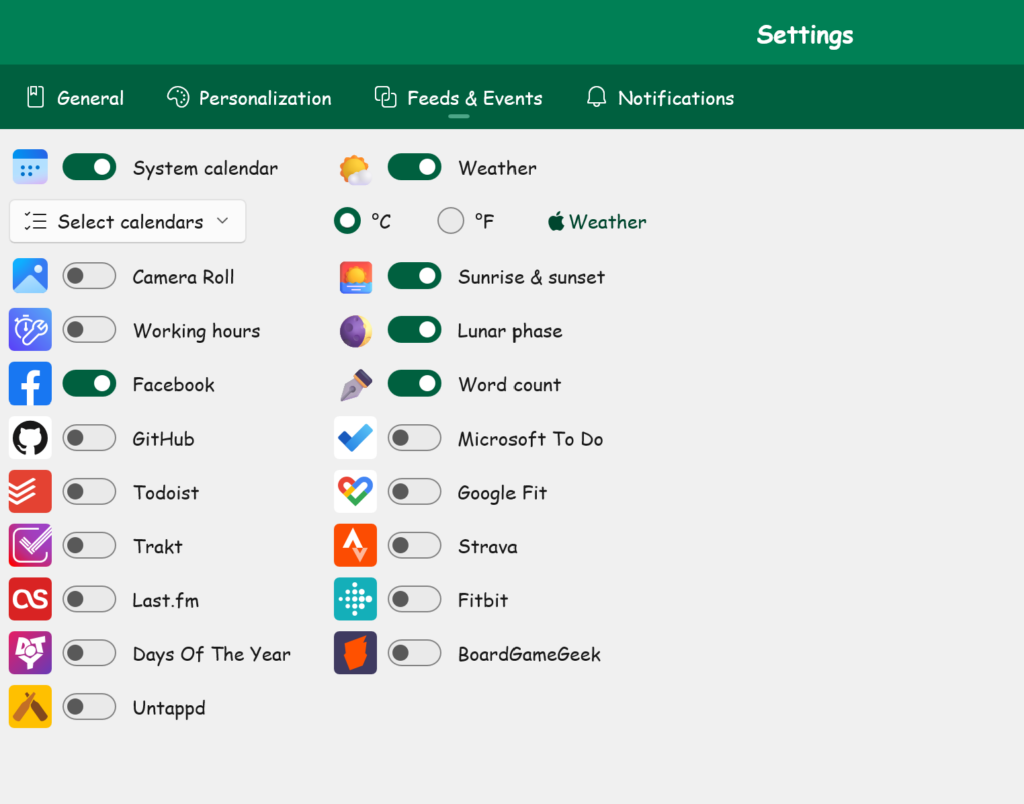
The integrations I’ve used or seen include:
- System calendar, which shows your appointments and events from that day inside the entry (this works entirely on your device, so it’s local-only)
- Weather, which pulls the day’s weather conditions, sunrise and sunset times, and lunar phase
- Photos, which surfaces photos taken on your device that day, ready to attach
- Social media like Facebook, Instagram, Last.fm, Untappd, and Trakt
- Fitness apps including Google Fit, Fitbit, and Strava
- Productivity apps like Todoist and Microsoft To Do
- Code, through a GitHub integration
- Other services like BoardGameGeek and a few smaller ones
I keep my own integrations minimal because I want my journal to be something I write, not something assembled for me. But I have weather and the calendar feed enabled, and they help anchor entries to context I’d otherwise forget.
Templates
This one didn’t exist when I first started using Diarium, or I missed it. Either way, it’s worth mentioning. You can create custom templates and insert them into a new entry with two clicks. I have a simple morning template with three sections (intent for the day, energy level, top priority) that I use most weekdays.
For anyone doing structured journaling like gratitude logs, daily reviews, or bullet journal-style logs, templates remove the friction of starting from scratch.
Export options that respect your data
This is one of the reasons I committed to Diarium for the long term. Any journaling app that doesn’t let you export your entries cleanly is one bad business decision away from holding your memories hostage.
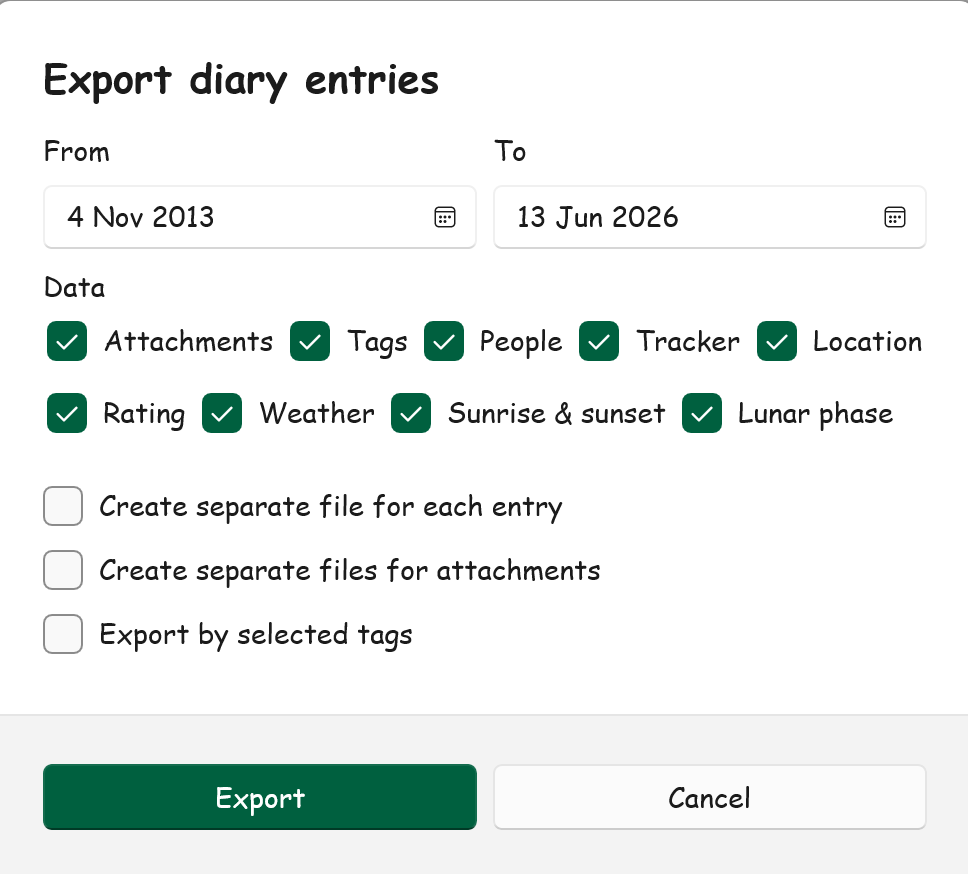
Diarium gives you a real exit. You can export your entries as DOCX (Word format), HTML (a web page), plain text (.txt), or JSON for developers or migration. Attachments come out as separate files, which is the right way to do it.
I’ve never actually had to leave Diarium, but knowing I can means I never feel locked in. That changes the relationship I have with the app.
You can also import from other journaling apps when you’re getting started, including Day One, Diaro, Journey, Daylio, Diarly, Daybook, and Evernote. So if you’re migrating from somewhere else, you don’t have to start over.
One-time payment, no subscription trap
Saving the most obvious one for the end. Diarium is one of a shrinking number of apps that still respects the one-time purchase model. You pay once per platform, and you own the app. No annual renewal, no “Pro+” tier next year, no email asking you to upgrade your plan.
I’ll cover the actual pricing in detail in a moment. The short version is that this alone is enough reason to try Diarium if you’re tired of journaling apps that charge $30 to $100 a year.
What I wish Diarium had
Two years is enough time to bump into the limitations of any app, and Diarium has its share.
Tables
I never thought I cared about tables in a journal until I started using them in my main note-taking app for things like weekly reviews and work notes. Now, when I want to do something similar in Diarium, I miss them.
Tables are useful for habit grids, trip logs, expense breakdowns, and book lists. The current workaround is to use bullet points or write everything as paragraphs, which doesn’t really work for tabular content. This is one of the most-requested features in the Diarium community, and I’d love to see it land eventually.
Checkboxes
The other most-requested feature, and a more painful gap for me. Checkboxes aren’t just for to-do lists. I use them when I’m brainstorming, where each idea is something I might or might not act on later. I use them in evening reflections to check off things I followed through on. I use them in trip planning entries to track what I’ve done versus what’s left.
Diarium supports bullet points and numbered lists, but no checkbox list type. You can fake it by typing [ ] and [x] in your entries, but it’s not the same as a real interactive checkbox.
Inline images
This one stings the most. As I mentioned earlier, attachments in Diarium live in their own zone at the bottom of an entry, not embedded in your text. For shorter daily logs, that’s fine, but for longer reflective entries where I want to anchor a paragraph to a specific photo, it’s frustrating.
The developer has acknowledged that this is hard to implement because of how the app’s data model is built. I respect the honesty, but I still hope it lands eventually. My current workaround is to take a screenshot of the photo with the surrounding context, which is clunky.
Embeds
Lately, I’ve found myself wanting to write about specific things on the web. A Spotify song that brought back a memory, a YouTube video that gave me a new perspective, a social media post I want to think out loud about. Right now, I just paste the link, but a real embed (the kind where you can play the song or see the post inline) would change how I journal these moments.
This is a stretch goal more than a real complaint, but it’s on my wish list.
Web access
Diarium runs natively on every major operating system but doesn’t have a web app. There’s no way to access your journal through a browser on a device you can’t install apps on.
For me, this is mostly a minor issue, because my own laptop and phone cover almost all of my journaling.
But if you sometimes want to write from a borrowed computer, or a work-issued laptop you can’t install software on, the lack of web access is a real limitation.
Web clipper
When I tested Day One again a few months ago, the feature I missed most after leaving was the web clipper. The ability to save an article, post, or page directly into your journal as an entry is genuinely useful, especially when something online sparks a longer reflection.
In Diarium, you can paste a link and write around it, but there’s no native clipper that captures the page content for you. I’d love to see this, even as a basic version that just saves the title, URL, and a short excerpt.
Database encryption (and a workaround for existing users)
This is a feature I wanted to flag separately because it’s a more recent addition and there’s a small catch worth knowing about.
Starting with Diarium V5, the app now supports full database encryption. When a new user installs Diarium, the app will ask whether you want to encrypt your database, and if you say yes, it walks you through creating a password or passkey that becomes your master passphrase. From then on, that passphrase is what unlocks your entries on every device you sign in to.
It’s worth saying clearly: if you lose this passphrase, you lose access to your entries. There’s no recovery option, which is exactly what you’d want from a real encryption feature, but it also means you have to save it somewhere safe. A password manager is the obvious choice.
For new users, this is a great addition, and one I wish had been there from the start.
The catch is for existing users like me. Encryption isn’t applied automatically. The developer (Timo) has acknowledged this and said he’s working on a proper migration path, but at the moment, there isn’t one built into the app yet.
After reading through the community forum and trying a few things on my own setup, here’s the workaround I used to get my existing journal encrypted. I’m sharing it because no other information I’ve seen actually walks through this, and it took me a bit of trial and error to figure out:
- Make sure your entries are safely backed up. Diarium saves entries on your device first and syncs them to your cloud, so they shouldn’t disappear, but I’d still do an export to JSON or DOCX before touching anything.
- Go to Settings and click Reset Credentials. This logs you out of the cloud storage Diarium is currently connected to and stops syncing. It does not delete the entries already saved on your phone or desktop.
- Reconnect Diarium to a different cloud account from the one you were using before. I’d recommend setting up a separate Google Drive, OneDrive, Dropbox, or iCloud account for this. A new free Gmail takes a couple of minutes to create. The reason to use a different account is so your original V4 folder stays completely untouched as a backup, in case anything goes wrong with the new encrypted setup.
- When you reconnect, Diarium will prompt you to set up encryption and create a passkey. Save the passkey somewhere safe.
- Let Diarium sync your local entries up to the new (encrypted) cloud folder, and verify everything is there before doing anything else. Open a few past entries, scroll through On This Day, and check that attachments are intact.
- Once you’re confident the new encrypted folder is working, you can go back to your original cloud account and delete the old V4 folder if you want a clean break. The old folder won’t be encrypted, so removing it removes the unencrypted copy. I’d personally wait at least a few days of normal use before deleting it, just to be sure.
If you want to switch back to using your original email after successfully syncing to the different one, you can follow the same process above. Just make sure to delete the V4 folder from your original cloud account first, then run the reset-and-reconnect steps again to point Diarium back to that email.
It’s a few extra steps for something that should ideally be a one-click toggle, but it works. Once you’re done, the entire database is encrypted going forward, and any new device you sign in to will need the passkey to access your entries.
Diarium pricing: is it worth it?
This is where Diarium gets a little nuanced, so it’s worth slowing down here.
Diarium uses a one-time purchase model per platform, with no subscriptions and no recurring fees. Pricing currently looks like this (subject to change, so check the official site or your app store before buying):
- Windows: $9.99 one-time purchase from the Microsoft Store, no free version
- macOS: $9.99 as an in-app purchase, with a free tier and a 7-day Pro trial
- iOS: around $4.99 as an in-app purchase, with a free tier and a 7-day Pro trial
- Android: around $4.99 as an in-app purchase, with a free tier and a 7-day Pro trial
The Pro version is what unlocks cloud sync, unlimited attachments, and the full feature set.
The catch (and this is the part that comes up a lot in the Diarium community) is that the license is bound to the app store account on each platform. So if you want sync between Windows and Android like I do, you have to buy Pro on Windows and Pro on Android separately. They don’t share a license.
I understand why some people find this frustrating. But when I worked the math out, I paid for Windows Pro and Android Pro about two years ago, and I’ve used the app every single day since. That works out to a few cents a day, and there’s no annual bill waiting for me. Compared to Day One Premium at $34.99 a year, Diarium pays for itself before the first year is over and keeps paying off after that.
If you only journal on one platform, this is the cheapest serious journaling app I know of.
Final verdict
After nearly two years and over 3,000 entries, I still use Diarium every day. It may not be perfect, but it works well for my needs. I like that I only pay once to keep my memories accessible, and I appreciate this more each year.
If you want a solid journaling app, especially for Windows, Diarium is one of the few I would trust for long-term use. I wanted something I could stick with, and almost two years in, I’m still using it.