10 Capacities Features That Transformed My Daily Journaling
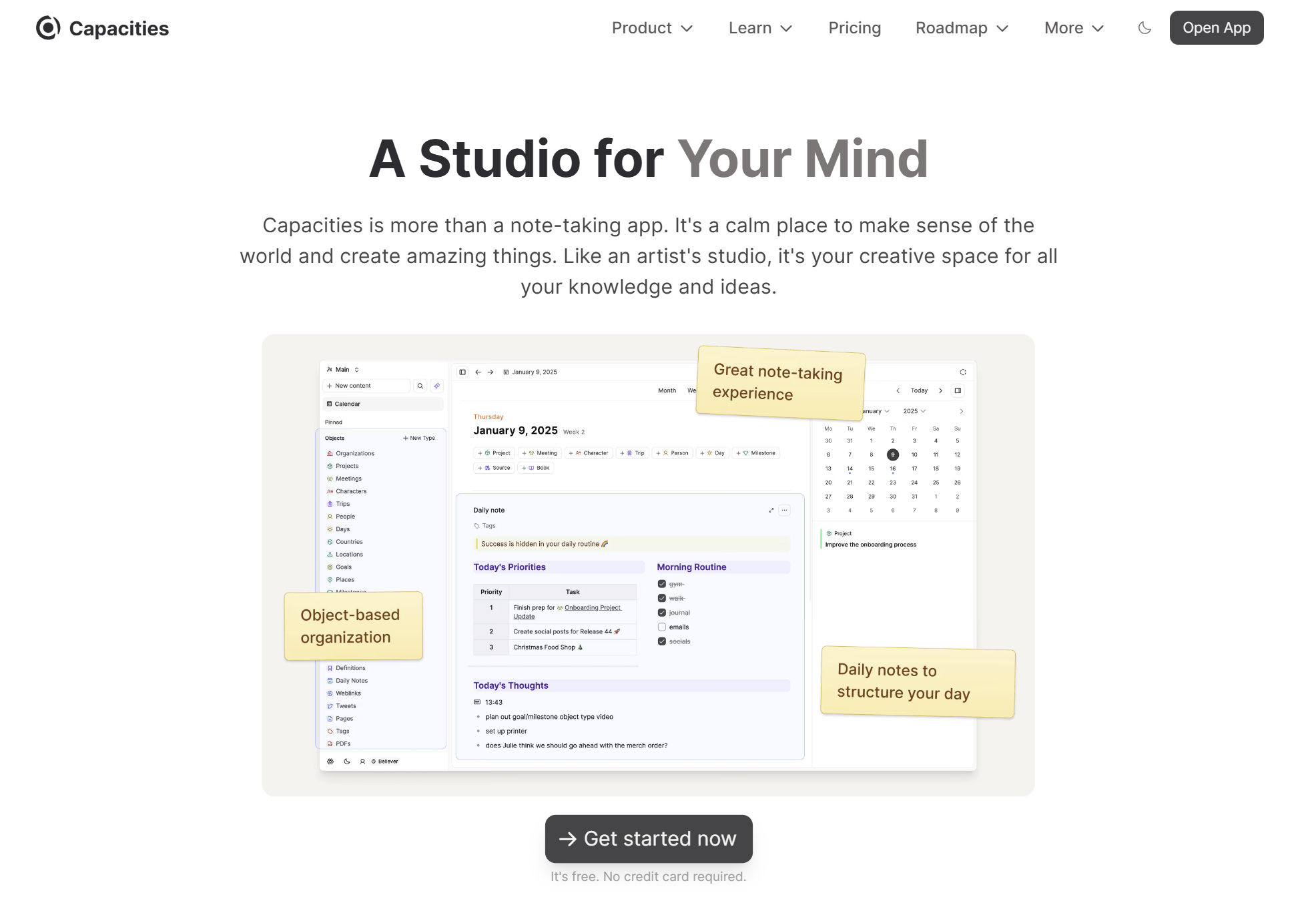
I discovered Capacities in early 2023 while hunting for a productivity app that could finally help me stay organized. Like many who try Obsidian, I had a complicated relationship with it—intrigued but frustrated.
It wasn’t until February this year that something clicked when I started using Capacities purely for journaling.
If you’re new to Capacities or curious about what makes it different from traditional journaling apps like Day One or Diarium, this guide breaks down the features I actually use every day. Some are obvious, others flew under my radar for months.
1. The Daily Notes Page
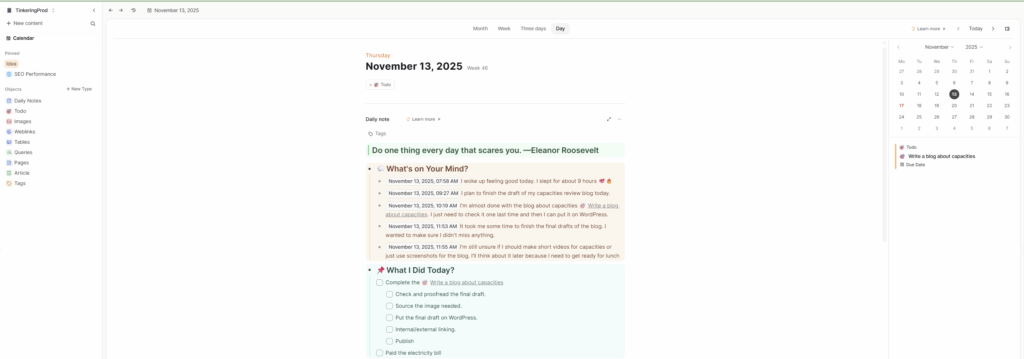
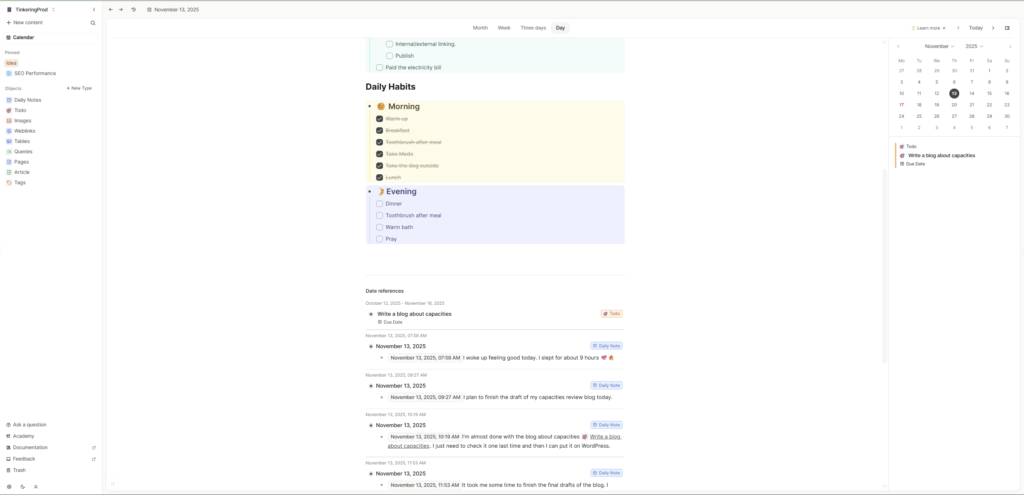
The daily notes page opens automatically every time you launch Capacities, whether on desktop, web, or mobile. For anyone coming from Day One or Diarium, this feels strange at first.
Where’s the “new entry” button? Why is today’s date just… there?
I spent my first few days treating it like a traditional journal—writing stream-of-consciousness entries without thinking too hard about structure. The daily notes became my inbox, my scratch pad, my planning space. Everything that crossed my mind went into that day’s page. Plans, random ideas, things I might write about later.
What I appreciate most is never having to create titles for my entries. In traditional journaling apps, I’d spend time thinking of the perfect title. “Morning Coffee Thoughts”? “Weekend Plans”? It sounds minor, but that friction adds up.
With Capacities, the date is the title.
The underrated part is how everything connects back to daily notes. Every entry you create—whether it’s a book note, a photo, or a file you upload—automatically links to the date you created it. You’ll find these under two sections:
- Date references – Notes that mention this specific date
- Created today – Everything you made on this day
2. Bi-directional Linking Changed How I Connect Ideas
This feature genuinely transformed how I write my journal. Traditional journaling apps like Diarium, Day One, and Journey technically allow linking between entries, but it’s clunky. You can link notes, sure, but it’s not seamless and definitely not two-way.
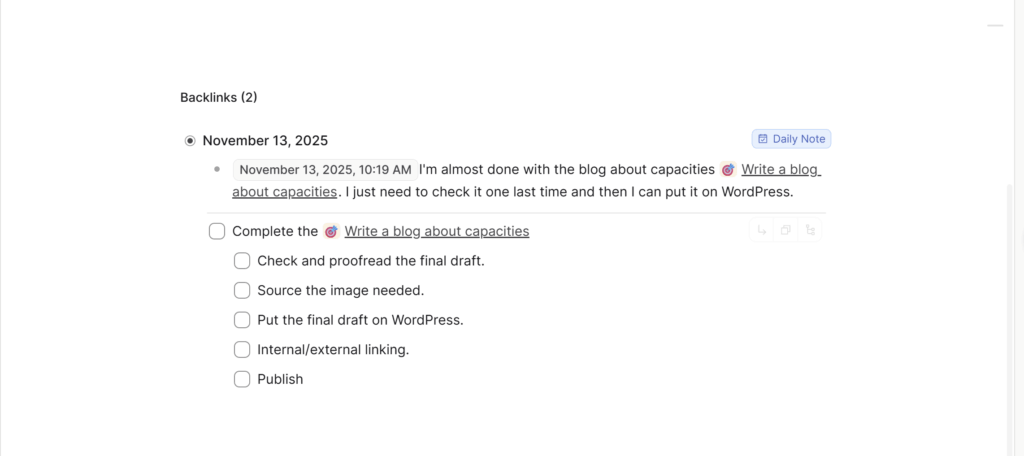
Capacities supports true bi-directional linking. If I mention a previous entry in today’s journal, that old entry automatically knows it’s been referenced. For someone who journals a lot about people, places, and recurring events, this changes everything.
Here’s how it works: If I want to reference a previous entry related to what I’m writing now, I type @ or [[]] and search for it. You can link as many notes as you want—there’s no limit.
When you link Note A to Note B, it creates a backlink in Note A. Check your old note and scroll down—you’ll see exactly where it’s been mentioned. Since Capacities is block-based, you see the specific paragraph or section, not just a vague reference.
The best part about Capacities backlinks is the interface. You can edit that section directly from the backlinks panel without leaving the current page. In other apps, you’d need to click through to the original note, make your edit, then navigate back to check the backlink. It’s a small detail that saves surprising amounts of time.
3. Creating Notes Without Leaving Your Current Page
This is one of those features I didn’t know I needed until I had it. I journal primarily on mobile (about 70% of the time), so this matters more than it might sound.
Say I’m writing in my daily notes and mention a new book I bought today. Instead of navigating to my Books object, creating a new entry there, and then returning to my journal, I can create it inline by typing @/book/newentry or [[book/newentry]]. This works for any object type you’ve already created.
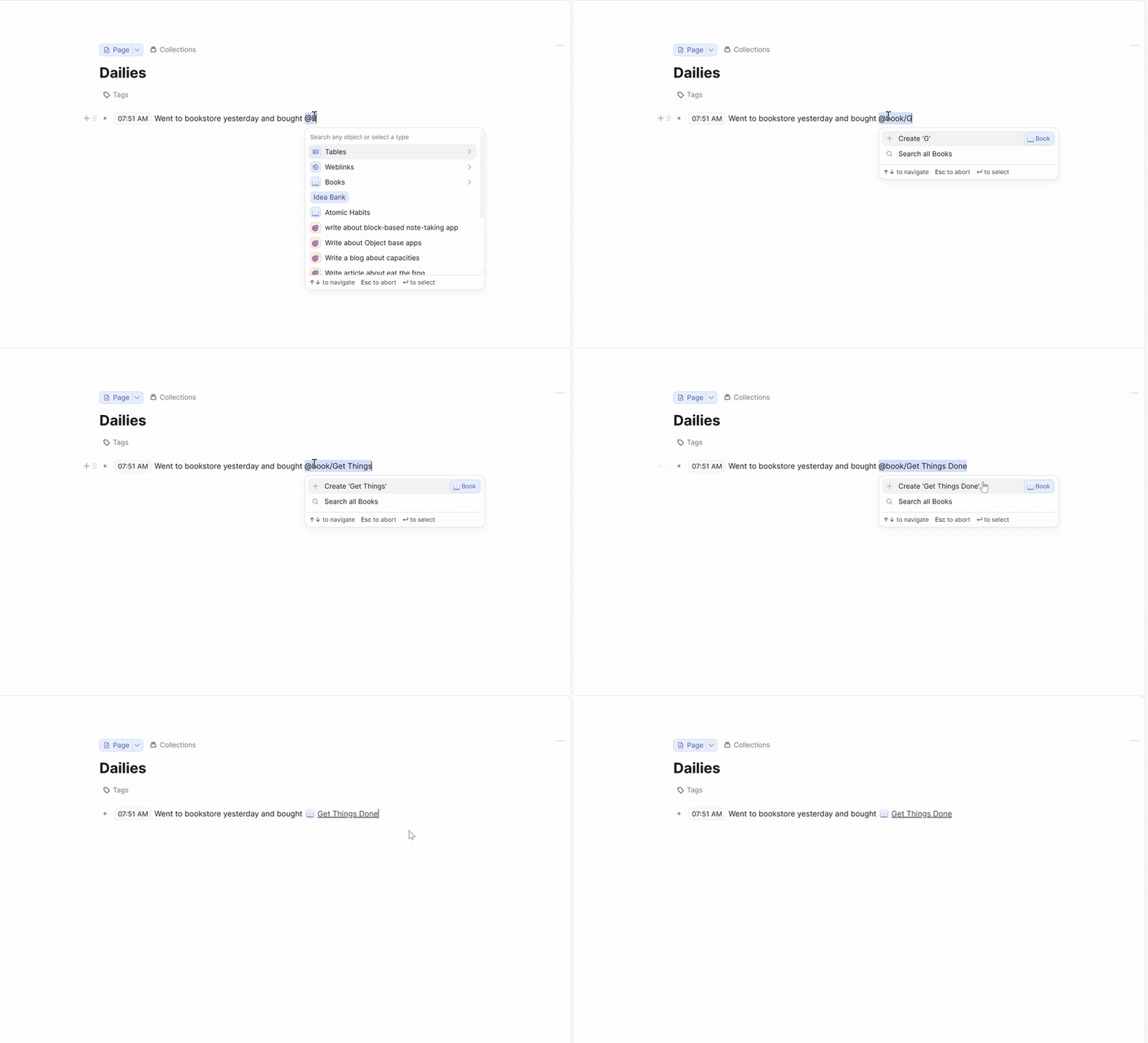
On desktop or web, there’s another method. Type a hashtag with the object name, like #book, select it from the dropdown, and it embeds right there. You’ll see all the properties for that object type and can fill them out without switching pages.
For someone who journals on their phone during commutes or while waiting in line, this inline creation is the difference between capturing an idea and forgetting it because switching apps felt like too much work.
4. Note Embedding and Transclusion
This feature took my journaling from simple daily entries to something closer to a personal knowledge management system (PKMS). I’ll admit, as someone coming from traditional journaling apps, I had no frame of reference for this. No journaling app I’ve tested offers this—it’s common in block-based note apps like Logseq, Roam Research, and Tana. Even Obsidian has it, but not as smoothly as Capacities handles it.
Note embedding means you can turn any link into a full block that displays content inline. Let’s say you mention a book called “Atomic Habits” in your journal. Instead of just linking to it, you can turn it into an embedded block with multiple viewing options:
- Inline – The default link view, just text
- Link block – Same as inline, but with view options available
- Small card – Shows the note as a compact square card
- Wide card – Rectangular card with more visible details
- Embed – Full note content displayed right there in your current page
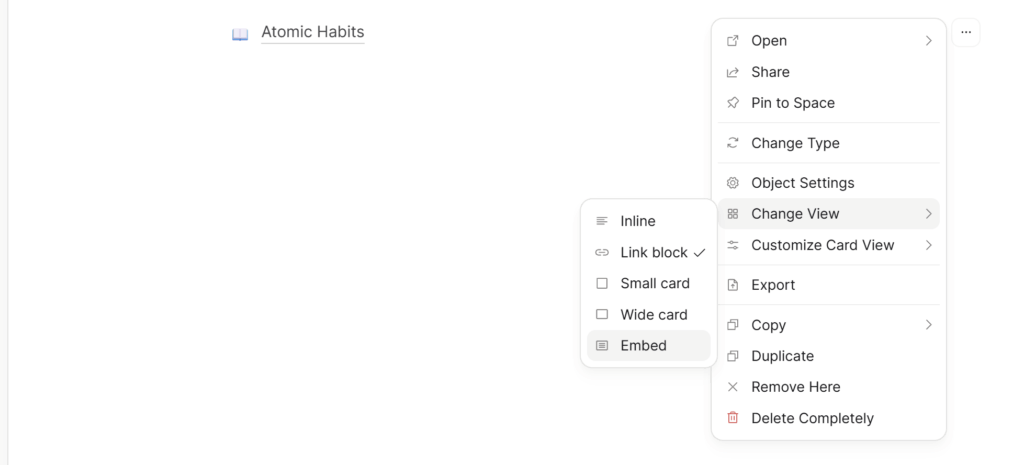
To change views, click the three dots on the embedded block and select “change view.” You can customize what shows up—specific properties, images, tags, whatever matters for that object type.
Transclusion is the other half of this feature, and it’s incredibly useful for repurposing past journal entries. Transclusion links specific blocks (paragraphs) from one note into another. If I wrote something relevant on March 15th and want to reference it today, I don’t need to remember the exact wording or copy-paste it.
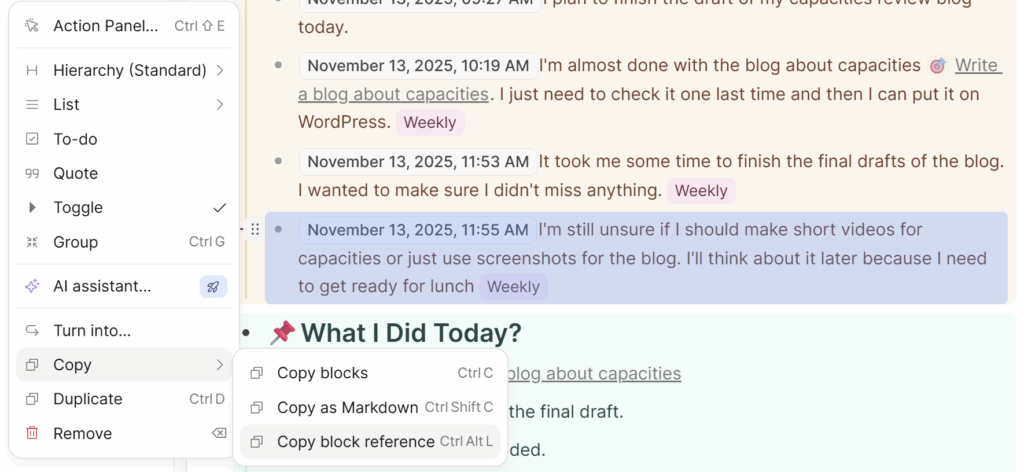
Instead, I navigate to March 15th, find the paragraph I want, click the six dots on the left of that block, select “copy block reference,” and paste it into today’s entry. Now those two notes are connected through that specific thought. The best part: if I edit that original paragraph later, the change appears everywhere I’ve transcluded it.
5. Database Views Give Structure Without Feeling Rigid
The database system in Capacities is unique. Not every note-taking app has this, and Capacities makes it native to how everything works. The entire app functions like one massive database where every piece of content automatically gets added based on its object type.
When you create objects like daily notes, books, or people, they’re structured under a database that you can customize with different properties. Once you’ve set up an object, Capacities supports four different page layouts:
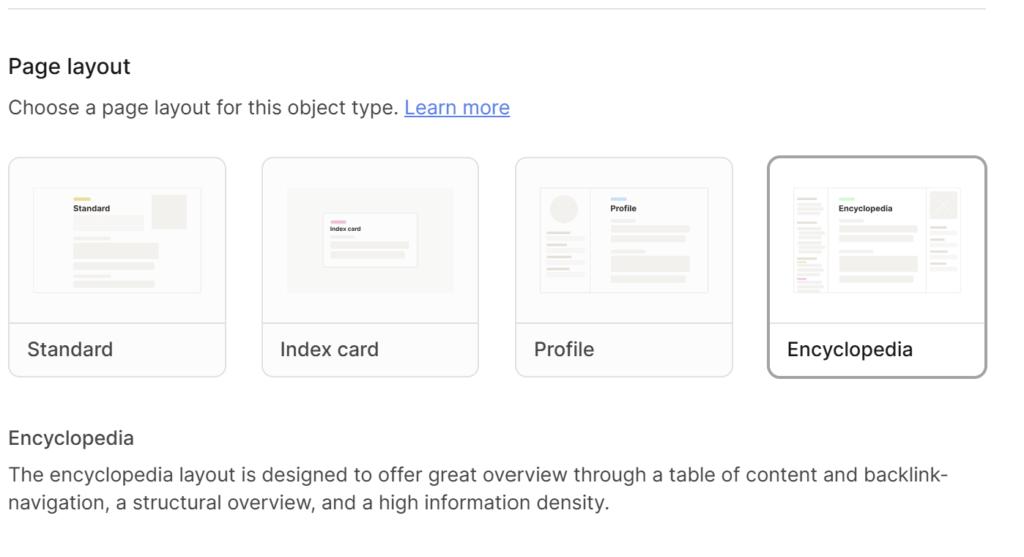
Standard view – The default. Shows all properties at the top of your note. Clean and straightforward.
Index card – Perfect if you use the Zettelkasten method. I use this layout for my Places object since those notes don’t need much detail.
Profile – Designed for People objects. You can add cover images, and the layout mimics how contacts look on your phone. This is my favorite layout since I journal about people constantly.
Encyclopedia – I use this for wiki-style notes that need more structure and visual hierarchy.
What makes these layouts valuable is that they’re built in. You don’t need to design your own template, figure out how to structure your database, or use external plugins. Pick the layout that fits your content, and you’re done. You can switch between layouts anytime without losing data.
Beyond page layouts, Capacities offers multiple object views for seeing all entries in that category:
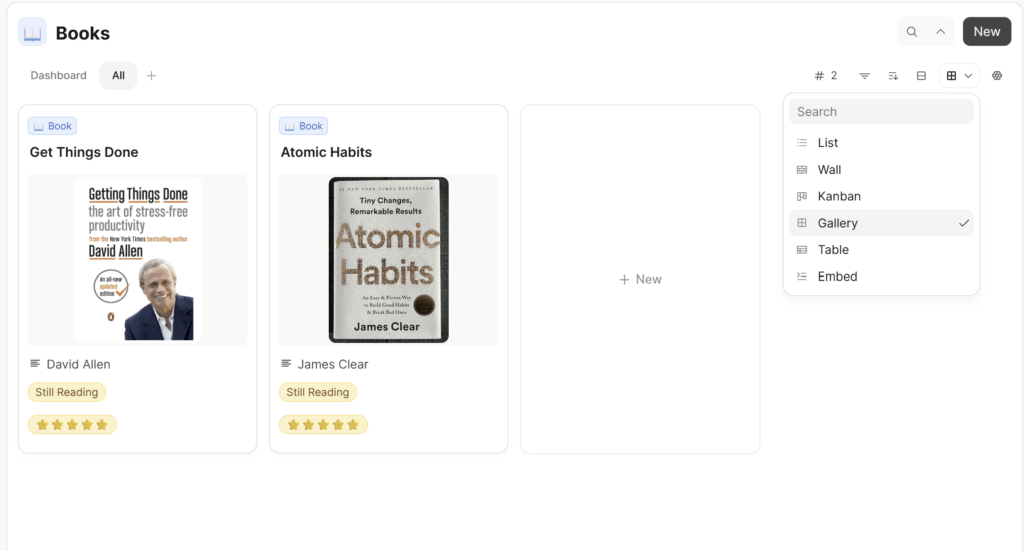
List – Simple bulleted view of all entries. Good when you just need names without visual clutter.
Wall – Masonry-style layout, similar to how Pinterest displays images. Cards are different heights based on content.
Kanban – The dev team added this recently. If you’ve used Trello, you know what this is.
Gallery or Card view – My most-used view. Shows uniform-height cards in a grid. Clean and scannable.
Table – Displays entries in rows and columns (spreadsheet style). You can modify which properties show up and reorder them.
Embed – Shows full note content in a single scrollable view, or as toggles you can expand individually.
You can also configure these views to show specific properties, filter by tags, or adjust how images display. The flexibility exists without making you build everything from scratch.
6. Graph View Shows Connections Without the Clutter
You can’t talk about Capacities without mentioning its graph view. It’s one of the features that sets it apart from traditional journaling apps, though plenty of note-taking apps have embraced graphs by now. Roam Research started the trend, but Obsidian made it famous with their sprawling global graph visualizations.
Capacities took a different approach. There’s no global graph showing your entire workspace at once. Instead, the graph view is local—you open a specific page or object, click the graph icon in the top right, and see connections starting from that point. You can zoom out to see more related notes, but it always stays contextualized around the page you’re viewing rather than displaying everything at once like Obsidian does.
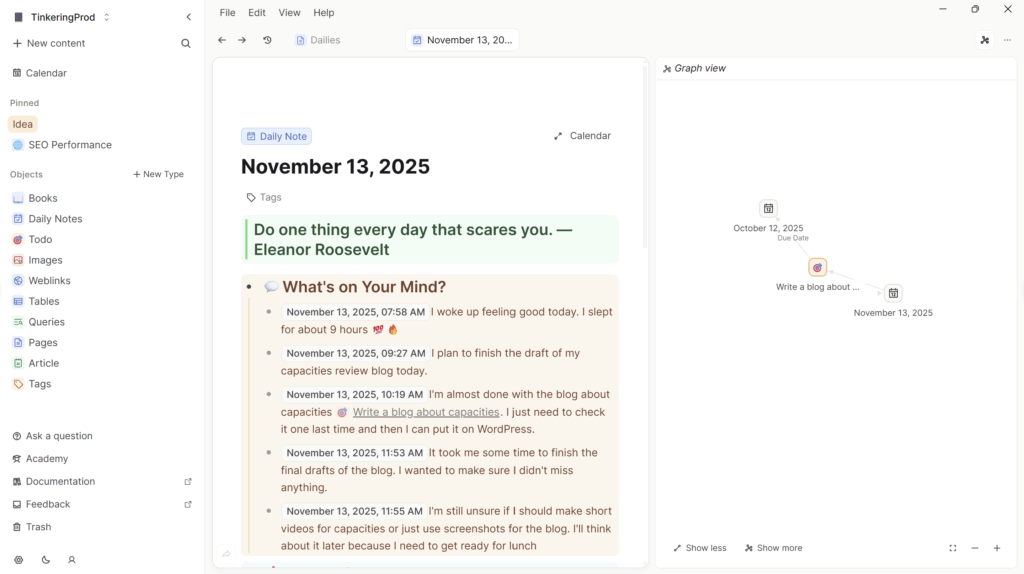
What I appreciate about the local graph is how focused it stays. When I’m looking at a journal entry from March, the graph shows me the notes linked to that specific day—people I mentioned, books I referenced, and places I wrote about. I can zoom out from there to see second-degree connections, but it doesn’t throw my entire year of journaling at me in one overwhelming web.
This has become one of my go-to methods for finding related notes, aside from using the global search bar. Instead of trying to remember exact keywords or dates, I can pull up the graph and visually scan for connections. It’s especially useful when I’m writing a new entry and want to reference something I know I wrote before, but can’t quite remember when.
The graph view works across web, desktop, and mobile, though I find it most useful on desktop, where I have more screen space to see the connections clearly.
7. Tags Work Like Simple Dashboards
Tags have been in Capacities since early on, but I only recently figured out you can turn them into dashboards.
Embarrassing to admit, but true.
Here’s my use case: I have a #weekly tag that I add to specific notes throughout the week—things I want to include in my weekly review. Instead of hunting through my daily notes to find them, I created a simple dashboard.
First, type the tag (#weekly), hover over it, and select “turn into block.” Then click the three dots, go to “change view,” and select “embed.” Now you have a dashboard showing all notes with that tag.
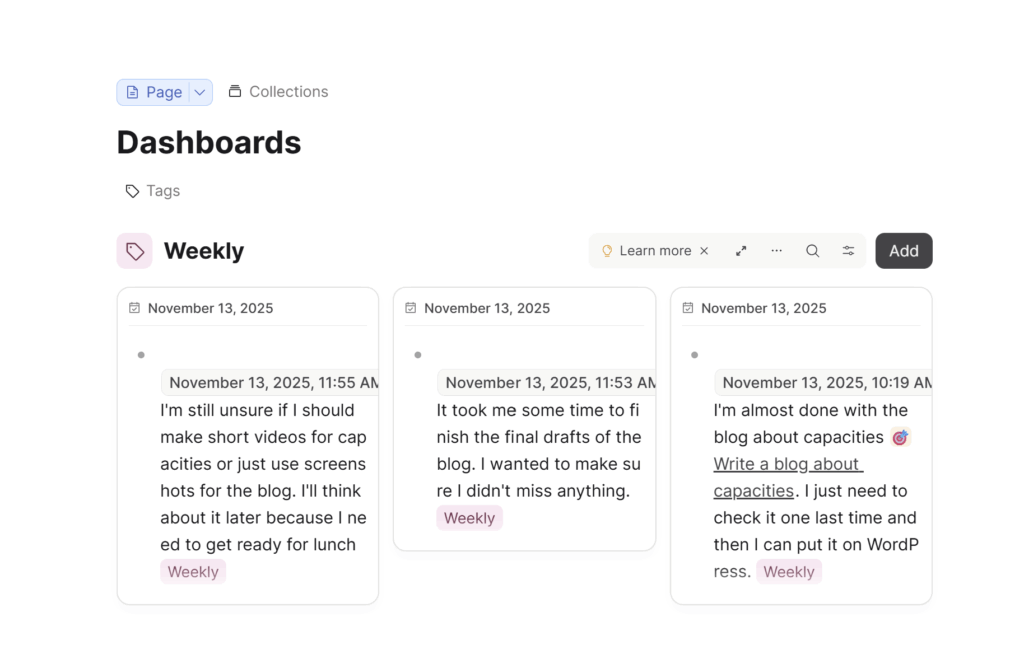
After my weekly review, I remove the tag from those notes so the dashboard resets for the next week. I pasted this dashboard block into my daily notes template, so it’s always there when I open today’s page.
If you have a pro subscription, you can take this further with smart queries and variable queries. Variable queries let you build dynamic dashboards that adapt based on context—referencing the current object instead of hard-coding specific values. It makes your queries reusable across different projects or a person’s name.
8. WhatsApp Integration Makes Mobile Capture Effortless
Capacities offers several integrations, but WhatsApp is the one I use most. It’s available for both free and pro users, which is rare. You can send anything to your daily notes through WhatsApp—text, photos, whatever.
My main use case is photos. Capacities doesn’t support HEIF image format yet, so uploading from Samsung Galaxy photos directly shows them as files on mobile. You can only convert them to viewable images on a desktop. Since I realized WhatsApp automatically converts images when sending them, I started routing all my photos through it.
Sometimes I don’t want to switch apps while I’m out, so I just send everything—notes, images, thoughts—to Capacities via WhatsApp and organize it later.
Setting it up takes seconds. Go to Capacities settings, find the Integrations section, click WhatsApp, and scan the QR code. If you have multiple workspaces, you can only send to one at a time. You’ll need to adjust the integration settings to choose which workspace receives your WhatsApp messages.
Telegram and email integrations exist, too, but WhatsApp is the fastest.
9. Free Sync and 5GB Cloud Storage
This might sound small, but Capacities is one of the few note-taking apps offering generous free sync and 5GB of cloud storage. Many apps lock sync behind a paywall or give you free sync but tiny storage limits. Some require self-hosting if you want full control, which is more technical than most people need.
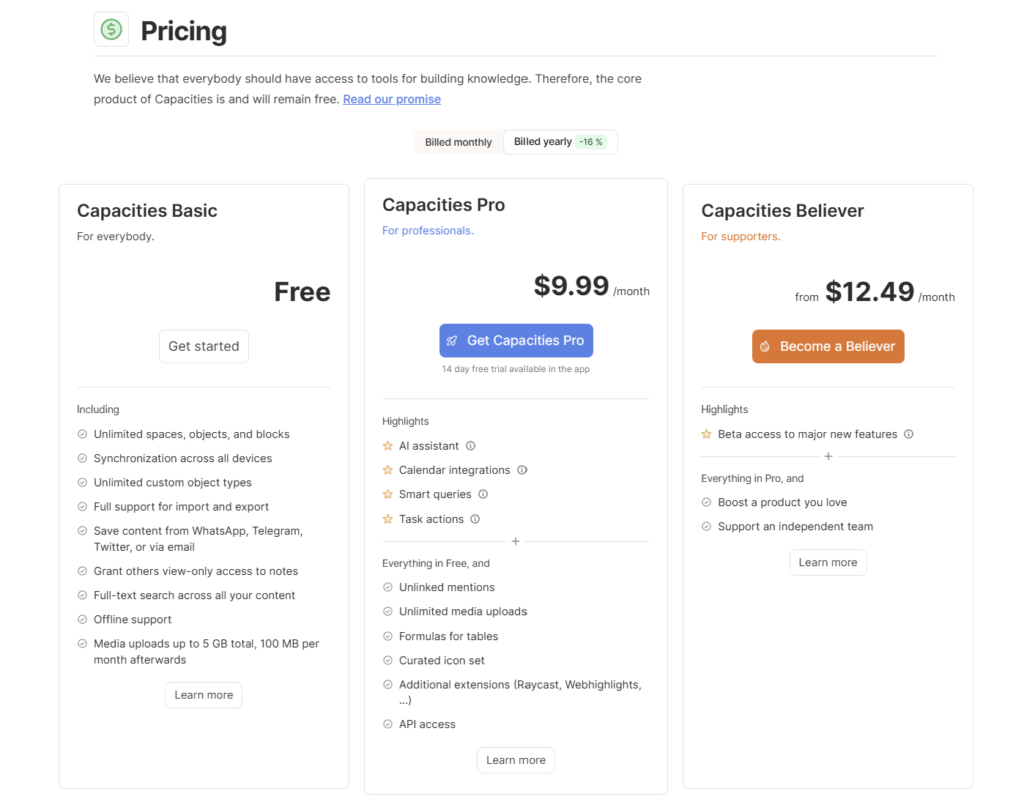
For casual journaling or note-taking, the Capacities free plan is enough. Even traditional journaling apps often require payment for sync across devices, even when using your own third-party cloud storage like Google Drive or Dropbox.
I tested the pro plan during the 14-day trial, but after it ended, I stayed on the free tier. My use case is primarily journaling without complicated workflows, so the free plan covers everything I need.
10. Automated Backup Export
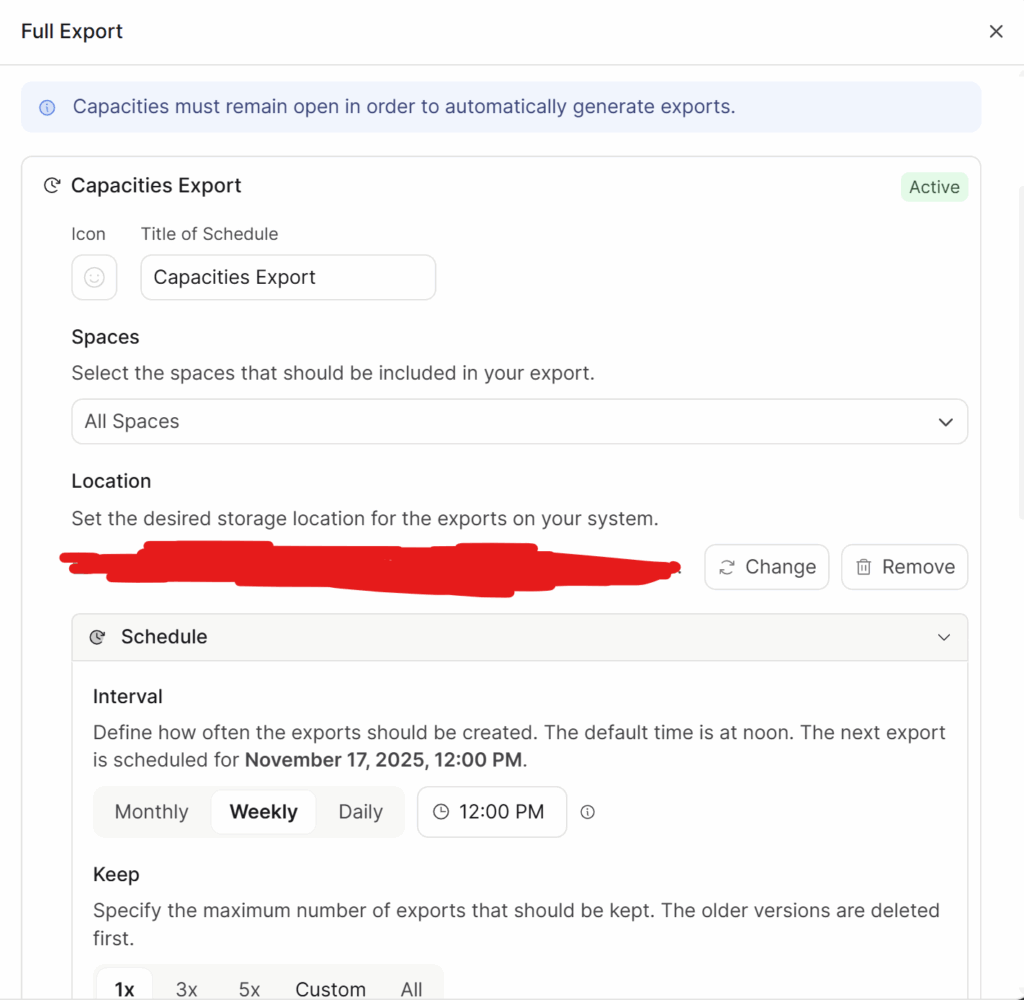
Export options matter for journaling and note-taking apps. You need to know your data isn’t locked in. Capacities offers both manual and automated exports, and automated backup is available regardless of whether you’re on the free or pro plan.
You can schedule exports daily, weekly, or monthly at a specific time. The app lets you keep up to five backup files and choose which older ones to delete. Having free automated backups is generous compared to most apps.
The exported files are in Markdown format, which means you can open them in any plain text editor or another app that supports Markdown. Your notes aren’t trapped in a proprietary format.
Capacities Compared to Traditional Journaling Apps
If you’re coming from Day One, Diarium, or Journey, here’s what changes:
What you gain:
- True bi-directional linking between entries
- Database-style organization without the complexity of Notion
- Block-level editing and transclusion
- Multiple views for the same content
- Better connection between people, places, and entries
What you lose:
- Pre-designed templates for mood tracking or gratitude journaling
- A calendar view of your journals, complete with photos.
- Location tagging (though you can add it manually through properties)
- Simpler onboarding—Capacities has a learning curve
Compared to Obsidian:
- Easier to start using without watching tutorials
- Built-in database structure instead of plugins
- Better mobile experience
- Less customization for power users who want full control
Who Should Use Capacities
Capacities works well if you:
- Journal regularly and want connections between entries
- Like structure, but don’t want to design your own system from scratch
- Use multiple devices and need a reliable sync
- Want more than a linear journal but less complexity than Notion
- Value your long-term data and need good export options
Who Shouldn’t Use Capacities
Skip Capacities if you:
- Want the simplest possible journaling app with minimal features
- Need offline-first functionality (Capacities requires internet for sync)
- Prefer complete customization and control like Obsidian offers
- Only journal on one device and don’t need sync
- Want pre-built templates for guided journaling prompts
Final Thoughts
Capacities isn’t perfect. Like every note-taking or journaling app, it has quirks and missing features. But for personal use, especially journaling, it hits a sweet spot between simplicity and power.
The free plan includes everything most people need. If you want to go deeper with smart queries, more storage, or advanced features, the Pro plan exists. But you can use Capacities seriously without paying anything.
After nearly two years of daily use, it’s become the first app I open in the morning and the last one I close at night. That consistency matters more than any individual feature.
I’ve been using Capacities daily since early 2023, primarily for journaling with some note-taking mixed in. This review reflects my personal experience, and I don’t receive any compensation from Capacities for writing it.