5 Ways to Future-Proof Your Digital Notes (So They Don’t Disappear Someday)
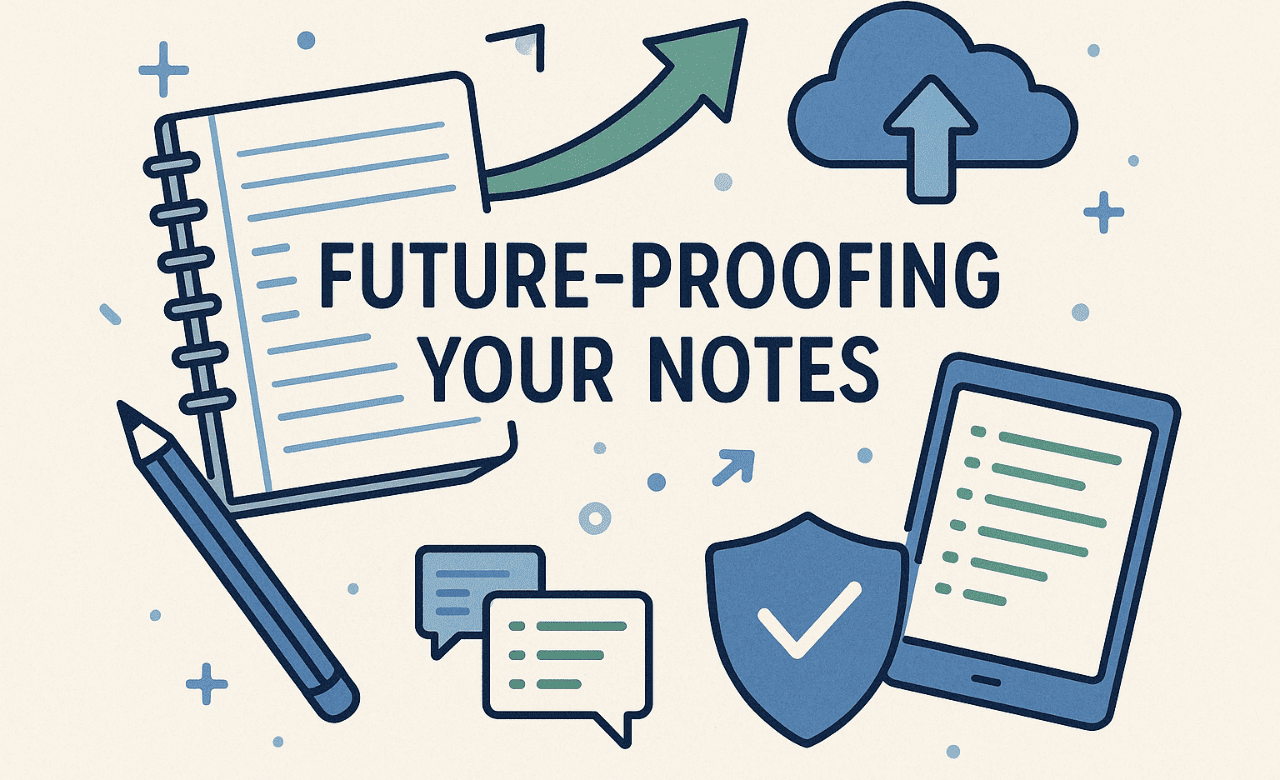
Note-taking apps shut down. It’s not a matter of if, but when.
I’ve watched users scramble when Google Reader vanished overnight. I’ve seen panic when Sunrise Calendar gave everyone 30 days to export years of data. And I’ve helped friends recover notes from apps that just… stopped working after an update.
If you’re storing important information or building a second brain in any digital note-taking app—whether it’s Notion, Apple Notes, Obsidian, or something else—you’re one company decision away from losing everything.
This isn’t about paranoia. It’s about reality. Apps get acquired, companies pivot, and servers fail. The question isn’t whether your note app will eventually let you down. It’s whether you’ll be ready when it does.
Here’s how to future-proof your notes and protect yourself.
1. Test your escape route before you need it
Most people discover their note app’s export feature the day they need to leave. That’s too late.
Right now, go to your note app’s settings and find the export option. Try it. Export a few notes and see what you actually get.
Notion gives you a zip file full of HTML pages and CSV files. Apple Notes creates PDFs that look nice but can’t be edited. Evernote spits out .enex files that only work in… Evernote. Google Keep exports to JSON files that require a computer science degree to read.
Some apps do better. Obsidian stores everything as Markdown files you can open anywhere. Bear exports clean Markdown. Joplin gives you readable text files.
The apps that make leaving easy are usually the ones worth staying with. If your current app makes export complicated, messy, or impossible, that tells you something about how much they value your data portability.
Try this test: export some notes, then try to import them into a different app. If it works smoothly, great. If it’s a nightmare, you might want to switch to a more future-proof format before you have thousands of notes trapped.
2. Your notes aren’t really “backed up” if they only exist in one company’s cloud
Cloud sync feels like backup, but it’s not.
When you edit a note on your phone and it appears on your laptop, that’s sync. When you accidentally delete something and it vanishes everywhere instantly, that’s also sync. Real backup means having copies that are separate from your main system.
I learned this when a client’s Notion workspace got corrupted during a server migration. Everything synced perfectly—the corruption synced to every device. Months of project notes, gone. Notion’s support was helpful, but they couldn’t restore data that never made it to their backups.
Here’s what actually protects you: regular exports stored somewhere else.
Set a monthly reminder to export your notebooks. Put them in a different cloud service, on an external drive, or just in a folder on your desktop. The key is “different”—not the same company, not the same service, not the same login.
Some newer apps are getting smarter about this. Notesnook lets you schedule automatic backups—daily, weekly, or monthly—directly to your device. On PC, if you have cloud storage like Dropbox or Google Drive mounted as local folders, you can set the backup destination to save directly there. Capacities has similar automatic backup features with local file destinations.
If your app offers automated backup, use it. Even if it just saves files to your computer, that’s still better than having everything live only in the app’s server.
For everyone else, manual exports work fine. Name them with dates (Notes_Backup_2025_09_29) so you can find them later. It’s boring, but boring works.
3. Keep old versions (because you will mess up)
You know that feeling when you realize you’ve edited something important beyond recognition? Or when you delete a section and immediately regret it?
Version control isn’t just for programmers. It’s for anyone who’s ever wanted to undo last week.
Google Docs handles this automatically—you can see every change and roll back to any previous version. Some note apps do this, too. Notion keeps page history for 30 days on paid plans. Notesnook saves old versions automatically. Obsidian has plugins for it, or you can use their paid Sync service, which includes version history.
But even if your app doesn’t do versions, you can create your own system. Before making major edits, duplicate the note and add a date. “Project_Plan_v1_Sept_29” might look ugly, but it’s beautiful when you need to recover something.
This is especially important for long-form writing, research notes, or anything you’ve spent significant time developing. The five minutes it takes to save a version can save hours of reconstruction later.
Some people use Git for their Markdown notes, which gives you industrial-strength version control. It’s overkill for grocery lists, but if you’re managing serious documentation, it’s worth learning.
4. Spread your risk across multiple storage systems
Putting all your notes in one place is like putting all your money in one bank account and hoping nothing bad happens to that bank.
The 3-2-1 rule from data recovery professionals applies to notes, too: 3 copies of important data, 2 different storage types, 1 offsite location.
For notes, this might look like:
- Live copy: Your daily note app
- Cloud backup: Exports stored in Dropbox, Google Drive, or iCloud
- Local backup: Files on an external drive or USB stick
This may sound complicated, but it’s not. Text files are tiny—your entire note collection probably takes up less space than a single photo. You can store thousands of notes on a $20 USB drive.
The goal isn’t perfection. It’s options. When something goes wrong with your primary system, you want alternatives that don’t depend on the same company, same servers, or same account.
Automate this if you can. Tools like Syncthing, rclone, or even basic folder sync can copy your exports to multiple locations automatically. But manual copying works fine too.
5. Some things are too important for any app
Digital storage is convenient, but it’s not permanent. Apps may disappear, file formats become obsolete, and companies change their minds about supporting old data.
For notes that would devastate you to lose—family or medical records, personal writing, legal documents, creative work—consider a physical backup.
I know this sounds old-fashioned, but paper lasts. Libraries have books from centuries ago. They don’t have apps from five years ago.
Print your most important notes on decent paper and store them properly. It takes minimal effort and gives you something that doesn’t depend on passwords, file formats, or company policies.
You don’t need to print everything. But if you have notes you’d describe as “irreplaceable,” don’t make them depend entirely on digital systems.
So, what should you actually do?
Not every note needs Fort Knox-level protection. Your grocery list doesn’t need version control. Your random thoughts don’t need multiple backups.
But if you’ve been building a collection of notes or a second brain over months or years, if you use them for work or creative projects, if losing them would genuinely upset you—then yes, you need a future-proof plan.
Start with step one. Right now. Go find your note app’s export feature and try it. See what you get. If it’s clean and portable, great. If it’s a mess, consider switching to something more export-friendly app before you invest more time building up a collection.
The goal isn’t to become a backup or future-proof expert. It’s to avoid that sinking feeling when your favorite app sends a shutdown notice and you realize you’ve never actually tried to get your data out.
Don’t let someone else’s business decisions destroy your work. Future-proof your notes before you need to.