Best Journaling Apps in 2026: My Top Picks After Years of Testing
Journaling is one of those things that’s entirely for you. You’re not writing for an audience, not collaborating with anyone, and not trying to optimize a process. You’re just putting down what happened, how you felt about it, or whatever’s been sitting in your head that day.
That’s why the app you use ends up mattering more than it probably should. If it’s annoying to open, you won’t open it. If it doesn’t remind you, you’ll forget. If it only works on your phone and you want to write from your laptop one evening, you’re out of luck.
I’ve been journaling digitally for several years. The first app I used seriously was Penzu — it was one of the earlier web-based journals, and I appreciated that syncing was free and you could write from both the browser and your phone. I used the free tier on and off for a while, mostly just writing down my thoughts. It worked for what it was, but the features felt limited without paying, and the premium pricing was steep for what you got. Eventually, I moved my entries to Diarium and kept exploring from there.
After going through over a dozen dedicated options, these are the five I’d actually recommend, along with a few general-purpose tools that work surprisingly well for journaling if you’d rather not download another app.
The best journaling apps at a glance
- Day One — for the best all-around journaling experience
- Journal It! — for journaling combined with planning and habit tracking
- Journey — for guided journaling with templates and prompts
- Daylio — for tracking your days without writing
- Diarium — for a one-time purchase with no subscription
1. Day One (Windows, macOS, Android, iOS, watchOS, Web)
Day One was one of the first journaling apps I ever tried, and I still think it’s the easiest one to recommend to someone who’s never journaled digitally before.
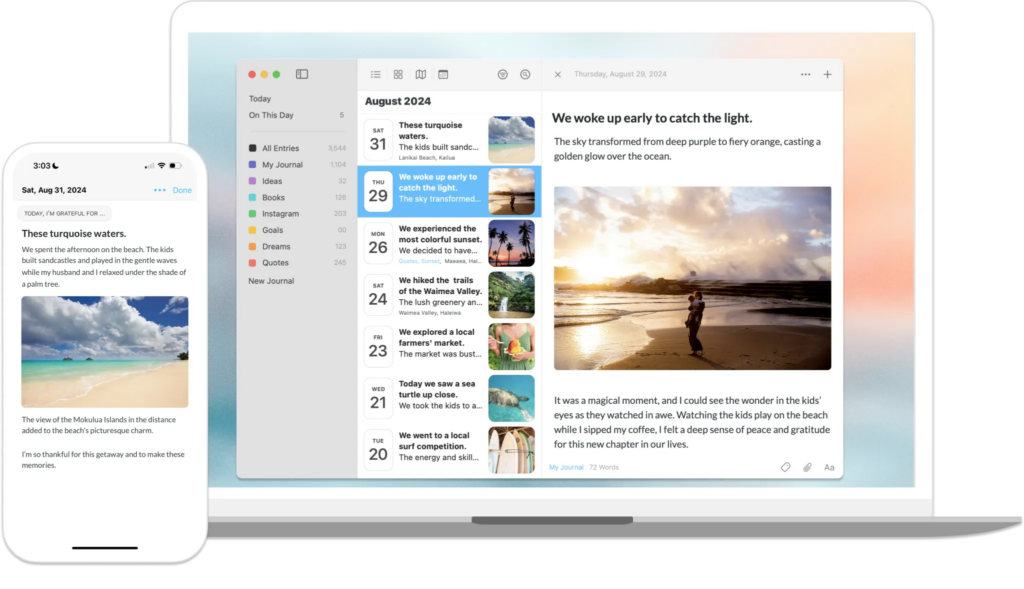
When you open the app, the first thing you see is your list of entries and a button to start a new one. No onboarding flow and no setup screens; you tap, you write. You can create separate journals to organize things — personal and work, for example — and share specific journals with someone else if you want to.
One thing that stood out to me early on was the rich text editor. Day One lets you add headings, bullet points, checkboxes, block quotes, and code blocks. But the feature I keep coming back to is inline image support. You can place photos exactly where they belong within the text, right between paragraphs, not just attached at the bottom as a separate file. Most journaling apps treat images as attachments. Day One lets them sit inside the entry alongside your writing, which makes a real difference when you read entries back later. They’ve added table support recently, too, though you can only create tables from the web app. Android and iOS will display them, but in read-only mode.
Every entry automatically logs your location, the weather, step count, and whatever music you had playing. The “On This Day” feature has its own dedicated section where you can browse entries from the same date in previous years anytime you want, not just when a notification happens to pop up.
Most journaling apps give you one reminder per day. Day One lets you set multiple throughout the day, which I find useful for capturing things as they happen rather than sitting down at night trying to reconstruct the whole day from memory.
Over the years, Day One has been moving some premium features into the free tier, which is nice to see. New users also get a 30-day free trial of premium. That’s more generous than most competitors, which typically offer 7 to 14 days.
My main criticism is platform consistency. The web app and the Windows desktop app don’t always match up, and features that work on one can behave differently or just be missing on another. If you journal from one device, it probably won’t bother you. If you switch between phone, laptop, and browser regularly, the inconsistencies get noticeable.
- Platforms: Windows, macOS, Android, iOS, watchOS, Web
- Pricing: Free version available; premium from $2.92/month (billed annually at $34.99)
Journal It! (iOS, macOS, Android, Web)
This is one of those apps I keep coming back to. I’ll try something else for a while, then end up here again because nothing else handles the combination of journaling and daily planning as well.
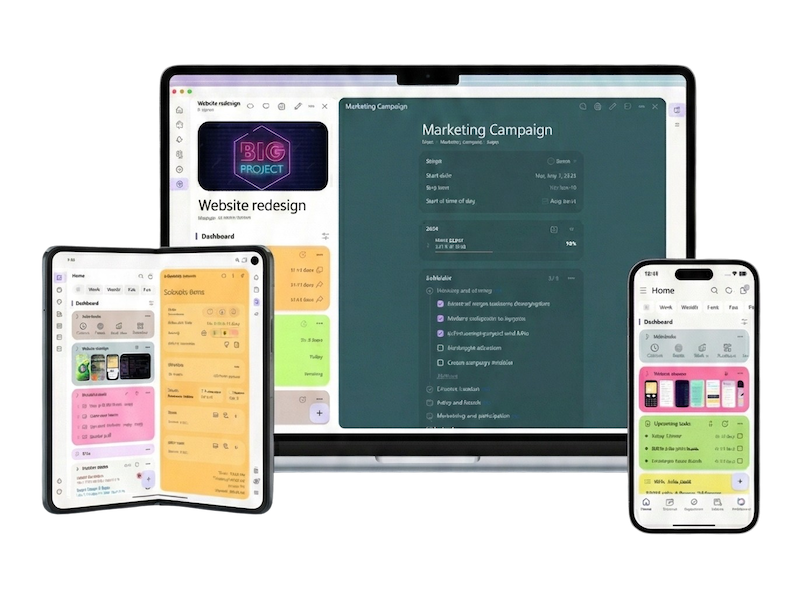
What drew me to Journal It! in the first place is how your journal entries, tasks, habits, and reminders all live on the same daily timeline. It’s not two separate features bolted together. When you sit down to reflect on your day, the context is already assembled. You can see what you got done, what habits you tracked, what was on your calendar, all alongside whatever you wrote.
The app can feel confusing at first, and I won’t pretend otherwise. There are a lot of buttons, and the way different sections connect takes a bit to figure out. But once you get it, the workflow makes sense. The rich text editor is good, comparable to Day One. There’s a mood tracker that builds up statistics over time. You can connect to Google Calendar for free. The planner section lets you split your habits, to-dos, and reminders by time of day — morning, afternoon, evening — which gives your daily structure a visual shape alongside your journal.
What really surprised me about Journal It! is the features you wouldn’t expect from a journaling app:
- Bidirectional linking. I haven’t seen this in any other dedicated journaling app. You can link entries to each other, and the app creates backlinks you can follow. It’s not as smooth as Obsidian or Capacities, but for a journaling app to even offer this is unusual.
- People section. You can add contacts and link them to entries. Pretty limited right now, but useful for tracking who you talked to or spent time with.
- Free tier. Unlimited entries, no ads, all core features, offline access, and end-to-end encryption for text. The premium adds extras, but the free version doesn’t feel like a trial you’re meant to outgrow.
One thing to know: the e2ee covers text entries, but images get stored on your Google Drive and aren’t encrypted by the app.
My one real complaint is how “On This Day” works here. Day One and Diarium both have dedicated sections for browsing old entries from today’s date. In Journal It!, you tap the notification, see the entry once, and if you close the app or dismiss it, it’s gone. You’d have to manually find it in your timeline. For a feature that’s supposed to encourage looking back, that’s a miss.
- Platforms: iOS, macOS, Android, Web
- Pricing: Free with full core features; premium plans available
Journey (Windows, macOS, Android, iOS, Linux, Web)

I’ll be upfront: I didn’t use Journey for as long as the others. But even in a shorter time with it, I could see the appeal.
Journey is straightforward, and there aren’t layers of menus or features competing for your attention. You see your entries, you create a new one, and you write. That simplicity is the draw, especially if you’ve been overwhelmed by apps that try to do too much.
Where Journey stands out is templates and guided journaling. The app has a library of templates for things like daily gratitude and travel logs, plus “Coach” programs that walk you through multi-day exercises on topics like self-care or stress management. If you’re the kind of person who opens a journal and doesn’t know where to start, this gives you something to work with without forcing a specific structure.
It supports photos, videos, and audio. There’s mood tracking, weather, and location tagging, and an “On This Day” feature. The Cloud Print service will turn your entire journal into a printed book if you want a physical copy. Platform coverage is the broadest on this list: Windows, macOS, Android, iOS, Linux, and the web, syncing through Google Drive.
The free plan is more limited than what Day One or Journal It! offer at no cost, which makes it harder to get a real feel for the app before paying.
- Platforms: Windows, macOS, Android, iOS, Linux, Web
- Pricing: Free version available; premium from $4.17/month (billed annually)
Daylio (Android, iOS)
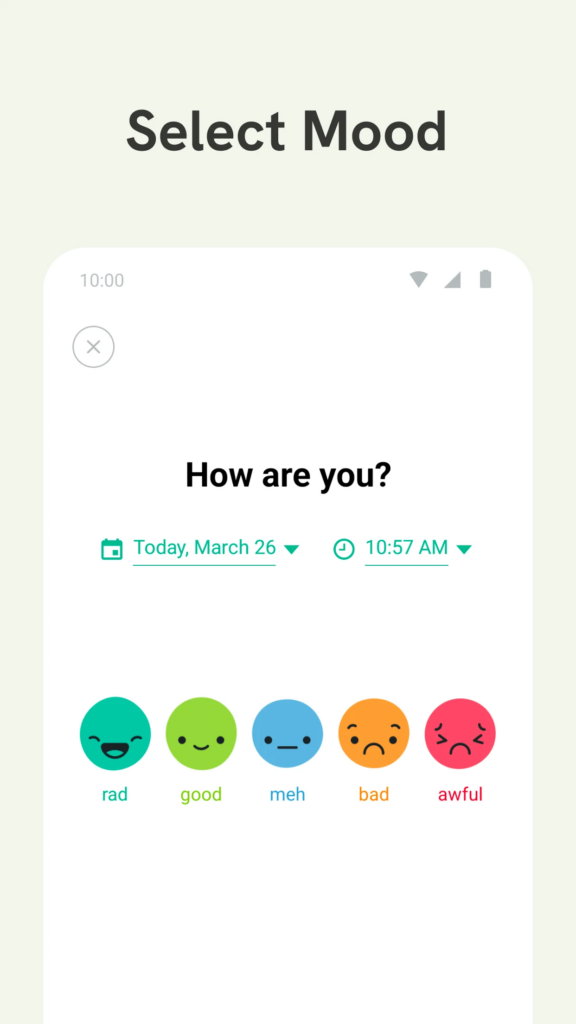
Daylio isn’t my main journal. I use it alongside other apps specifically for mood tracking, and for that, it’s excellent.
You log your day in two taps. Pick your mood from a five-point scale, select the activities you did from a customizable list, and you’re done. The whole thing takes under ten seconds. Over time, Daylio builds charts showing which activities correlate with better or worse moods. The “Year in Pixels” view turns your entire year into a color-coded grid, which makes patterns visible in a way that writing alone doesn’t. Streaks and achievements add a bit of gamification that helps keep the check-in going.
You can add a note to any entry, but the app doesn’t push you to. And honestly, if you’re looking for a longer reflection, the text editor isn’t built for it. It’s limited and clearly designed for quick thoughts, not paragraphs. That’s fine. Daylio does mood tracking really well and doesn’t try to be more than that. I use it for exactly what it’s good at.
- Platforms: Android, iOS
- Pricing: Free with ads; premium from $2.99/month or $23.99/year
Diarium (Windows, macOS, Android, iOS)
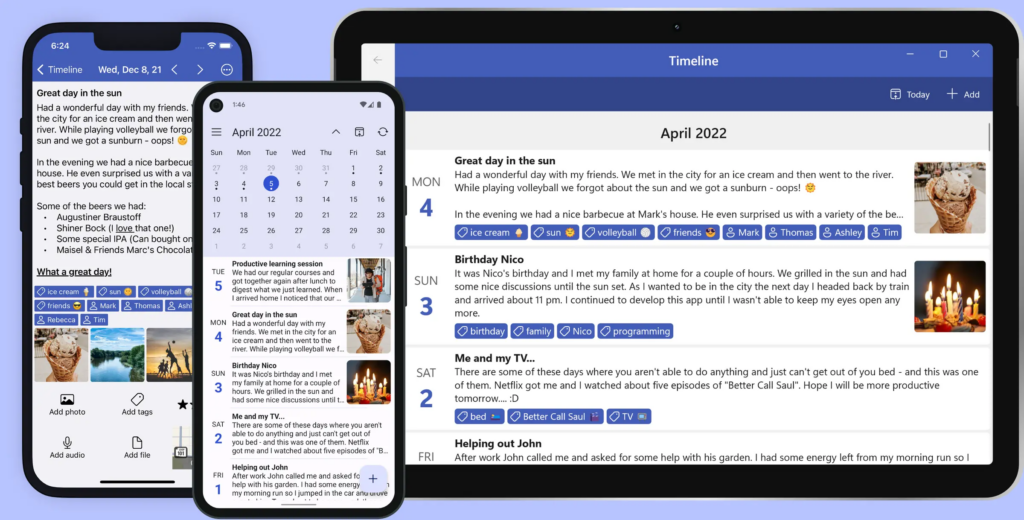
Diarium is the journaling app I actually purchased, and the reason was simple: no subscription. You pay once per platform, you own it, and nothing expires. If you’re tired of monthly charges adding up across every app you use, Diarium’s pricing model is the initial draw.
In terms of what it can do, Diarium is one of Day One’s closest competitors. It’s easy to use, the overall experience is solid, and the Windows app in particular is impressive. It won a Microsoft Store Award in 2024 and feels like a proper native application, not a cross-platform port. If you journal primarily on Windows, this is probably the best option you’ll find.
The app pulls in data automatically from your calendar, camera roll, fitness apps like Google Fit, Fitbit, and Strava, social media, and weather. When you open it to write, your day is already partially filled in. The “On This Day” section is well implemented, with a dedicated area for browsing past entries from the same date. That’s an area where Diarium does it better than Journal It!, which loses the notification once you dismiss it.
Syncing works through OneDrive, Google Drive, Dropbox, iCloud, or WebDAV. Entries export to DOCX, HTML, RTF, JSON, or TXT. You can import from Day One, Journey, Daylio, and others.
Where Diarium falls short for me is the text editor. No tables, no headings, no code blocks, no block quotes. Images are attachments, not inline. You also can’t embed Spotify or YouTube links — sometimes I write about a song I’ve been listening to or a video I found interesting, and I’d like to save it right inside the entry. In Day One you can do that. In Diarium, the best you can do is paste a URL as plain text. If Day One’s editor feels like writing in a rich document, Diarium’s feels more like a basic text field with some formatting sprinkled on. New features take a while to show up, which makes sense because the app is maintained by a solo developer. But if the editor matters to you, the gap is real.
Creating a new entry also takes a couple more taps than Day One’s one-tap flow. And there’s no web app, so browser-based journaling isn’t an option.
On Android, iOS, and macOS, you get a 7-day free trial with Pro features unlocked. After that you need to buy a separate license for each platform. Windows is a paid purchase from the start.
- Platforms: Windows, macOS, Android, iOS (no web app)
- Pricing: $9.99 per platform (one-time); 7-day free trial on Android, iOS, and macOS
Not a journaling app, but it works for journaling
You don’t need a dedicated journaling app to keep a digital journal. If you already use one of these tools for something else, it can handle journaling too. You just won’t get features like daily reminders, mood tracking, or “On This Day” reflections built in.
Notion can be set up as a journal with daily pages, linked databases, and embedded media. It’s flexible enough to build whatever system you want. The tradeoff is that you’re doing the building yourself, and Notion’s complexity can work against the simplicity that journaling benefits from. If you enjoy designing templates and workflows, great. If you just want to open something and write, it adds friction.
Obsidian stores everything locally as Markdown files. The daily notes feature creates a new entry each day, and plugins can add reminders, mood tracking, and other journal-adjacent features. Out of the box, though, it’s a note-taking app. The journaling workflow is something you put together yourself, not something the app gives you.
Capacities opens to a daily notes page the moment you launch it. No clicking through menus, no setup. Today’s date is just there, ready. Entries can link to other objects in your workspace, and everything is date-stamped automatically. I’ve been using Capacities for daily journaling since early 2023, and the frictionless daily page is the main reason the habit stuck. If you want your journal to live inside a broader note-taking system rather than a separate app, this is the one I’d suggest trying first.
Notesnook is end-to-end encrypted and works on every major platform. It doesn’t have journaling-specific features like mood tracking or automatic metadata. What it does have is a clean writing experience and strong encryption. If keeping your entries private is the thing you care about most, Notesnook handles the basics well without the overhead of a dedicated journaling app.
Do you need a dedicated journaling app?
It depends on what keeps getting in the way. If you journal in a notes app or a paper notebook and the habit is already working, you don’t need to change anything.
But if you’ve tried journaling before and it didn’t stick, the tool might be part of the reason. Dedicated journaling apps are built around consistency. Reminders timed to your day, mood tracking that builds up over weeks, “On This Day” reflections that make your old entries useful again. These features exist because the hardest part of journaling isn’t the writing itself. It’s showing up regularly enough for the habit to take hold.
I’ve journaled in Notion, Obsidian, Capacities, and dedicated apps. They all work. The one you stick with is the one that makes starting an entry feel like the easiest thing you’ll do that day.